Meta announced the Business Agent on June 3, 2026, and the pitch is blunt: an AI that lets a business "show up for every customer as if they had an infinite team behind them" — answering questions, recommending products from your catalog, qualifying leads, booking appointments, and deciding when a human should step in. Over a million businesses were already running it on WhatsApp and Messenger before the announcement, and it's now expanding to Instagram. Meta says it "can be set up in minutes."
That "minutes" claim is true if your account is already wired correctly. This guide is the part Meta's announcement skips: the actual prerequisites, where the controls live, the permissions that block half of would-be setups, and the order of operations that keeps the agent from saying something wrong to a real customer.
For the complete overview, see the complete guide to Meta Business Agent. If you're still deciding whether to turn it on at all, read what Meta Business Agent means for advertisers and Meta Business Agent vs. a human media buyer first. This post assumes you've decided to set it up.
One distinction that saves you an hour
Before you touch anything, get one thing straight, because the naming is genuinely confusing and the official coverage blurs it.
There are two different AI surfaces Meta shipped to businesses in 2026, and people conflate them constantly:
- Meta Business Agent — the customer-facing agent. It talks to your customers in WhatsApp, Messenger, and Instagram DMs. It answers questions, sells, books, and qualifies. This is what this guide sets up.
- The AI Business Assistant inside Ads Manager — an advertiser-facing helper that gives you recommendations, restores disabled accounts, adjusts spend limits, and (later in 2026) helps plan and create campaigns. MediaPost reports it lives "within various Meta environments, including Ads Manager, Meta Business Suite, and Business Support Home."
They share the Meta Business Agent Platform underneath, but you set them up in different places for different jobs. If you came here to make your ads smarter, the assistant in Ads Manager is mostly on by default — there's little to "set up." If you came here to make your inbox answer customers automatically, that's the Business Agent, and that's what the steps below cover.
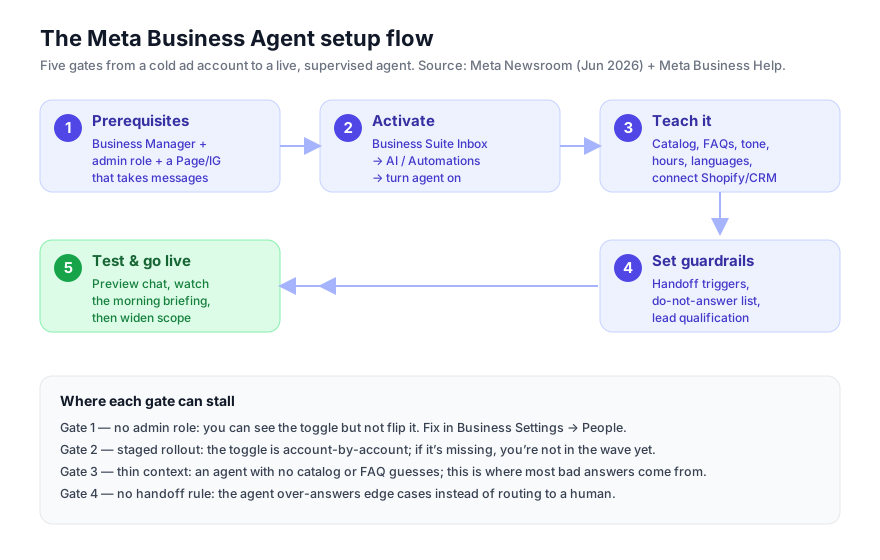
Step 1: Confirm the prerequisites
Most failed setups fail here, silently. Meta says activation "can be set up in minutes," but it assumes the scaffolding already exists. Check all four before you go looking for the toggle.
- A Meta Business Manager (business portfolio). The Business Agent is a business-level capability, not a personal-profile one. If you run ads, you already have one at business.facebook.com.
- An admin role on the business and the Page. You need to be a full admin — not an advertiser or analyst seat. The toggle is visible to lower roles but greyed out, which is why so many people think the feature is "missing." Fix this in Business Settings → People before anything else.
- A messaging surface that's actually connected. A Facebook Page, an Instagram professional account linked to that Page, and/or a WhatsApp Business number. The agent only works where customers can message you, so a Page with messaging disabled has nothing to attach to.
- A reason for it to exist — your business context. The agent is only as good as what it knows. Have your product catalog, FAQs, hours, and policies ready before you flip it on. An agent with no context guesses, and a guessing agent in front of customers is worse than no agent.
If any of these four is missing, the rest of the guide won't have a toggle to flip. Get them in place first.
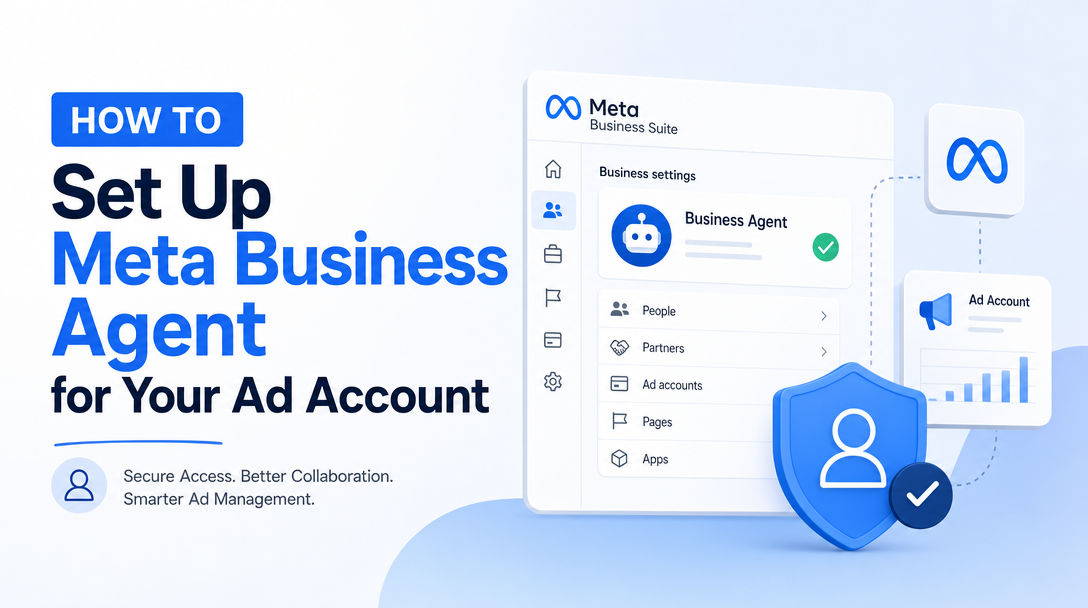
Step 2: Activate the agent in Business Suite
This is the "minutes" part. With the prerequisites in place, the control lives in your inbox, not in Ads Manager.
- Go to business.facebook.com (or open the Meta Business Suite app) and select the business portfolio that owns the Page.
- Open the Inbox. This is the unified inbox for Messenger, Instagram, and WhatsApp messages.
- Open the AI / Automations area — depending on your rollout it appears as an "AI" tab, an "Automations" section, or a "Business Agent" entry in inbox settings.
- Find the Business Agent toggle and turn it on for the channels you want it to handle.
A blunt, verified caveat: this is a staged, account-by-account rollout. Meta's own language is that it is "rolling out" and expanding to Instagram — not that it's universal. If you have a clean admin role and a connected Page but still don't see the toggle, you are almost certainly not in the rollout wave yet. That's not a bug to debug; it's a queue to wait in. Don't burn an hour hunting for a setting that hasn't reached your account. (Earlier coverage put the broader assistant rollout at "all advertisers and agencies of all sizes across major global markets" through April–June 2026, so the wave is moving fast.)
| If you see... | What it means | What to do |
|---|---|---|
| The toggle, enabled | You're in the rollout and have the right role | Continue to Step 3 |
| The toggle, greyed out | You're in the rollout but lack admin rights | Fix your role in Business Settings → People |
| No toggle at all | Your account isn't in the wave yet | Wait; re-check weekly. Nothing to fix |
| It on WhatsApp/Messenger but not Instagram | Instagram is the newest expansion | Confirm your IG account is linked to the Page |
Step 3: Teach it your business
Activation gives you an agent. Step 3 is what makes it yours. This is the step that separates an agent customers trust from one that embarrasses you, and it's where you should spend most of your setup time.
Connect and configure, in roughly this order:
- Catalog. Point the agent at your product catalog so it can recommend real, in-stock items and pull accurate prices. Meta highlights catalog-grounded recommendations as a core capability, so an unconnected catalog throws away half the value.
- FAQs and policies. Give it your shipping, returns, hours, and "how it works" answers in plain language. This is the single highest-leverage input — most customer messages are repeat questions, and this is what the agent should handle without thinking.
- Tone and language. Meta says the agent responds "in local languages using the business's tone." Set the voice (formal vs. casual) and confirm the languages your customers actually message in. Don't accept the default tone blindly; read three sample replies out loud.
- External systems (optional but powerful). The Business Agent Platform supports integration with hundreds of systems — Meta names Shopify, Zendesk, and Shopee. Connecting commerce and support tools lets the agent check live order status and act, not just talk. If you run a store, do this; it's the difference between "answers questions" and "resolves issues."
Honest caveat: the deepest platform integrations (custom connectors, the full Business Agent Platform for building bespoke agents) are aimed at larger businesses and partners, and Meta has signaled "paid subscription offerings" for various business sizes on top of a free starting tier. Getting started is free; the advanced surface may not be. Set up what's in front of you and don't wait for a connector you don't have.
Step 4: Set the guardrails before you set it loose
This is the step almost every quick-start guide skips, and it's the one that prevents the worst outcomes. An agent's job is partly to not answer — to recognize the edge case and route it to a person. Meta explicitly lists "determine when human team members should take over" as a core capability, so configure that, don't leave it on defaults.
- Handoff triggers. Define when the agent must hand off to a human: angry sentiment, refund or chargeback requests, anything legal or medical, high-value B2B inquiries. Over-handoff is annoying; under-handoff is dangerous. Start conservative — hand off more than you think you need to — and tighten later.
- A do-not-answer list. Topics the agent should never improvise on: pricing exceptions, custom quotes, anything about a competitor, anything it can't verify from your catalog or FAQ. Silence-plus-handoff beats a confident wrong answer.
- Lead qualification rules. If you use it to qualify leads, define what "qualified" means (budget, timeline, fit) so the agent asks the right questions and routes hot leads to your team fast instead of letting them cool in an inbox.
- Coverage windows. Decide whether the agent runs 24/7 or only after hours. After-hours-only is the safest place to start: it covers the gap when no human is online, where any answer beats silence, and limits blast radius while you build trust.
Step 5: Test, watch the briefing, then widen
Don't announce it to customers on day one. Treat the first week as a supervised trial.
- Preview-chat it yourself. Message the agent as a customer would — including the awkward questions. Try to make it say something wrong. If you can, your FAQ and do-not-answer list have a gap; go back to Step 3.
- Read the morning briefing. Meta built the agent to act as an internal partner too — it delivers a morning briefing on overnight chats it missed and surfaces thread insights. For the first week this briefing is your QA report: read every one and look for answers you wouldn't have given.
- Start narrow, then widen. Begin with one channel and after-hours-only. Once a week of briefings looks clean, add daytime hours, then add channels. Expanding scope is a one-toggle change; recovering from a public bad answer is not.
- Keep a human in the loop on handoffs. The point of Step 4 was routing edge cases to people. Make sure those people are actually watching the handoff queue, especially early.
What "set up" honestly means right now
Here's the unembellished state of play, so you set expectations correctly:
- The customer-facing Business Agent is live and rolling out account-by-account across WhatsApp, Messenger, and now Instagram. If you have it, setup genuinely is minutes of toggling plus an hour of teaching it your business. If you don't have the toggle, you're in the queue — that's the real "blocker," and it isn't one you can configure your way past.
- The Ads-side assistant is broadly available inside Ads Manager and Business Suite and mostly on by default; campaign planning and creation features are arriving "throughout 2026" per Meta, so the advertiser side is still filling in.
- The deep platform (custom agents, the full Business Agent Platform, hundreds of connectors) is real but tilted toward larger businesses and partners, with paid tiers on the way. Most advertisers will live in the Business Suite toggle and the teach-it step, not the platform.
Set up what exists today, guard it well, and widen scope only as the morning briefings earn your trust.
Where Soku fits
Meta's Business Agent owns the conversation — it talks to customers in your inbox. It does not run your paid media: it won't build campaigns, reallocate budget toward the audiences those conversations reveal, or catch a CPA drifting at 2 a.m. That's a different agent's job.
Soku is an ad-automation agent for exactly that layer — it connects to your Meta and Google ad accounts and handles the campaign-side work in plain language: pulling performance, auditing accounts, spotting anomalies, and proposing changes. Pair them and the loop closes: Business Agent converts the demand in your inbox, Soku optimizes the spend that drives demand to it. Setting up the Business Agent is step one of letting AI run more of your funnel — wiring the ads side is the other half.
When you're ready for the bigger picture, the complete guide to Meta Business Agent maps the whole cluster.