 Soku AI
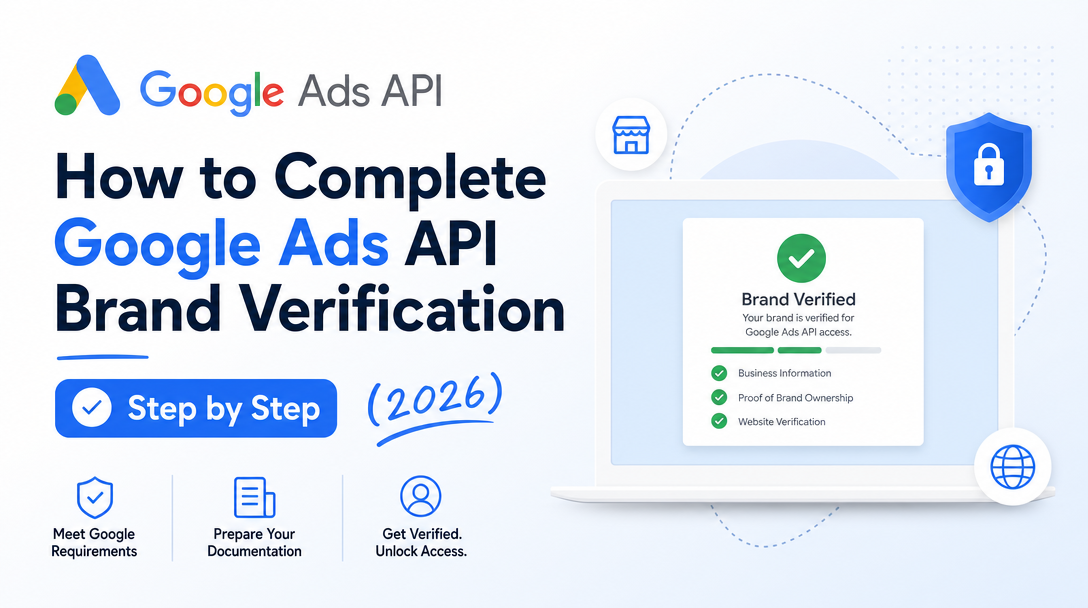
If your AI ad stack is stuck waiting on a Google Ads API developer token, this is the post you want. In July 2026 Google shipped a change worth acting on immediately: completing brand verification on the Google Cloud project behind your developer token can accelerate the review of your Basic Access application. It is optional, it takes about ten minutes of clicking, and — in a year when the review queue has visibly backed up — it is the cheapest lever you have to get unblocked.
This is the hands-on how-to. For the complete overview, see Google Ads API Access & Brand Verification. If you're still deciding which access tier you actually need, read Basic vs. Standard Access first — this post assumes you've settled on Basic and just want it approved fast.
Why this matters for AI ad teams right now
Brand verification landed in the middle of a real bottleneck. After Google introduced Explorer Access, released the official Google Ads API MCP server on October 7, 2025, and launched the Developer Assistant, application volume for developer tokens spiked. On February 6, 2026 the Google Ads API team acknowledged it publicly: "We have heard from the developer community that the applications for developer token access levels are taking longer than usual." Google added reviewers and fast-tracked some applications, but the queue was the point.
The irony is tidy: AI tooling created the surge, and AI ad teams are the ones most punished by the wait. An MCP server or an ads agent like Soku can read a test account all day, but it can't touch a live production account until your developer token clears Basic Access. Brand verification is Google's way of letting you prove your identity up front so a human reviewer has less to check. That's the entire value proposition — you do work that would otherwise happen mid-review, and the determination comes back faster.
First, untangle the three "verifications"
The single biggest source of wasted hours here is that Google uses the word verification for three unrelated things. Do the wrong one and you'll wait days for a review that was never going to help. Here's the distillation:
| Name | What it verifies | Where you do it | Relevant to Basic Access? |
|---|---|---|---|
| Brand verification (Cloud project) | Your app's identity + intent on the OAuth consent screen | Google Cloud Console → OAuth consent screen | Yes — this is the one that speeds up Basic Access |
| Advertiser identity verification | The legal identity behind an ads account | Google Ads → advertiser verification program | Indirectly — accounts should be verified/linked |
| Brand verification for business info | A trademark so you can use a brand name in ad copy | Google Ads → business info | No — unrelated to API access |
This post is about the first row only: the Google Cloud project brand verification that confirms you "have accurately represented [your] identity and intent as specified by Google's API Services User Data Policy." If you find yourself uploading a trademark certificate, you're in the wrong place — that's the third row, brand verification for business information, and it does nothing for your API access.
Prerequisites before you start
Brand verification only helps if the rest of your Basic Access application is in order. Line these up first, because they're also the most common rejection reasons.
- A developer token with Test Account or Explorer Access. You apply to upgrade to Basic; you can't start from nothing.
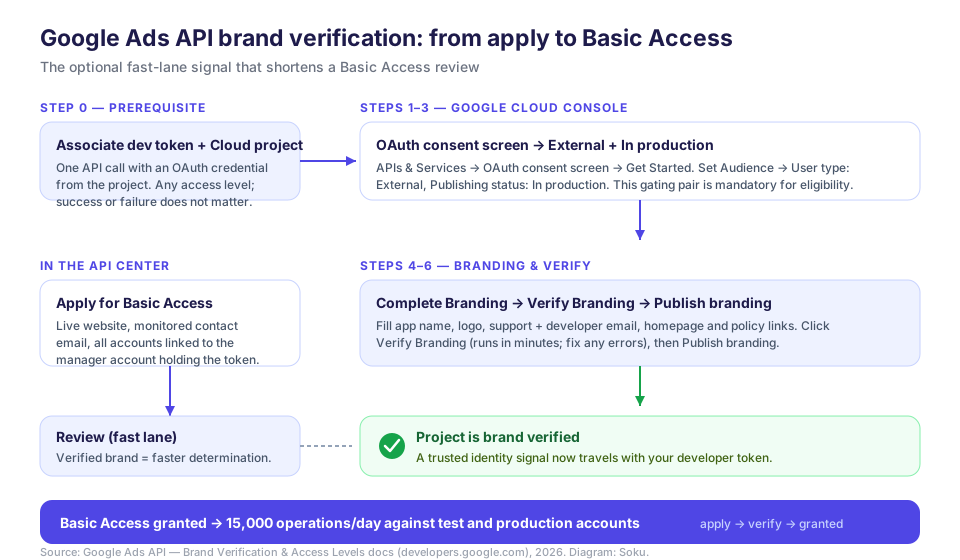
- Your developer token associated with a Google Cloud project. This is the true prerequisite for brand verification and it's easy to miss. Make one Google Ads API call using an OAuth credential (user or service account) from your project. The call can hit a test or production account, and it doesn't matter whether it succeeds or fails — the association is what registers.
- A live, functioning company website. Google may reject the application outright if the URL doesn't resolve. Ship a real page before you apply.
- A monitored API contact email. Google's compliance team may reach out during the review; if the inbox is dead, the review can stall entirely.
- All active Google Ads accounts linked to the manager account that holds the developer token.
The step-by-step brand verification flow
Everything below happens in the Google Cloud Console for the project tied to your developer token. Budget about ten minutes.
- Open the Google Cloud Console and select the project associated with your developer token.
- Go to APIs & Services → OAuth consent screen and click Get Started on the Overview tab.
- Fill in the application details (app name, user support email, developer contact) and click Create.
- Open the Audience tab and set User type to External. Google Workspace users will see it default to Internal — click Make external to change it.
- Set the Publishing status to In production. Non-Workspace users click Publish app to move the project from Testing to production; confirm any "Push to production?" dialog.
- Open the Branding tab, complete every branding field (app name, logo, homepage, and privacy policy / terms links), and save.
- Click Verify Branding. This button only becomes active once branding is complete.
- Wait for verification to finish — it runs in minutes. If Google surfaces errors, fix them and re-run; the page tells you exactly what's missing.
- Once verification succeeds, click Publish branding. Your project is now brand verified.
One rule overrides all of the above and is worth repeating because it's the most common miss: for Basic Access eligibility, your OAuth consent screen must have User type = External and Publishing status = In production. A project left in Testing or Internal will not carry the signal, no matter how complete the branding is.
After verification: apply for Basic Access
Brand verification is a signal, not the application. With the project verified, finish the request:
- Go to the API Center in your Google Ads manager account and confirm your current access level.
- Confirm the API contact email is current and monitored.
- Confirm every active account is linked to the manager account holding the token.
- Open the access-level dropdown and select the upgrade to Basic Access.
Because the project already carries a verified brand signal, the reviewer has less to establish, and Google uses that status "only as a signal for faster determination" — it's optional and not mandatory unless Google specifically asks for it during review. In practice, doing it up front is the difference between a clean pass and a back-and-forth.
Review timeline: what to actually expect
Google's documented targets and the 2026 reality have diverged, so plan for both.
| Access level | Daily operation limit | Documented review target |
|---|---|---|
| Test Account Access | 15,000 operations | Automatic on signup |
| Explorer Access | 2,880 operations | Auto-provisioned |
| Basic Access | 15,000 operations (test + production) | ~2 business days (historically) |
| Standard Access | Unlimited operations | ~10 business days |
Those are the published targets. The caveat: the backlog Google acknowledged in February 2026 pushed real waits well beyond the two-business-day target for much of the year. Brand verification doesn't jump the queue — it shortens the review itself by removing the identity questions a human would otherwise raise. If you're deciding between Basic and Standard, note the ~5x jump in review target and the unlimited quota; most AI ad teams should start with Basic and upgrade only when volume demands it.
Common rejection reasons (and how to dodge them)
From Google's own requirements and the developer-forum chatter, the pattern is consistent. Almost every rejection is one of these:
- Website doesn't resolve. A parked domain, a 404, or a "coming soon" splash reads as an unverifiable business. Ship a real page.
- Consent screen still in Testing / Internal. The single most common brand-verification miss. It must be External + In production.
- Developer token never associated with the project. If you skipped the one-call association step, there's no project for Google to check. Make the call first.
- Unmonitored contact email. If compliance emails and hears nothing, the review dies quietly. Route the API contact address to a real, watched inbox.
- Accounts not linked to the manager account holding the token, so Google can't see the accounts you claim to manage.
- Verifying the wrong thing. Uploading a trademark for a brand name in ad copy does nothing for API access — see the three-verifications table above.
What changes once you're verified and approved
Two things flip. First, your OAuth consent screen stops showing the "unverified app" friction, because the project's identity is now established. Second — the one you actually care about — your developer token clears Basic Access, unlocking 15,000 operations per day against live production accounts, not just test accounts.
For an AI ad team, that's the moment the tooling becomes real. Until Basic Access lands, an agent can only rehearse on a sandbox account; after it lands, the same agent can pull live spend, read search terms, and audit real campaigns. Soku is built for exactly that post-approval world — it runs on the Google Ads API once your token is cleared, so the faster you get through brand verification and Basic Access, the sooner an agent is doing the reporting and optimization work instead of you. Brand verification is a ten-minute task that removes the last bureaucratic gate between "we set up the API" and "the API is doing our work."
The short version
Brand verification is optional, fast, and — during the 2026 backlog — one of the few levers that meaningfully shortens a Basic Access review. Associate your developer token with a Google Cloud project, set the OAuth consent screen to External and In production, complete and verify branding, then apply for Basic Access with a live site, a monitored inbox, and all accounts linked. Don't confuse it with the two other Google "verifications." Do it before you apply, not after Google asks. For the full landscape and where this fits, head back to the Google Ads API Access & Brand Verification pillar.