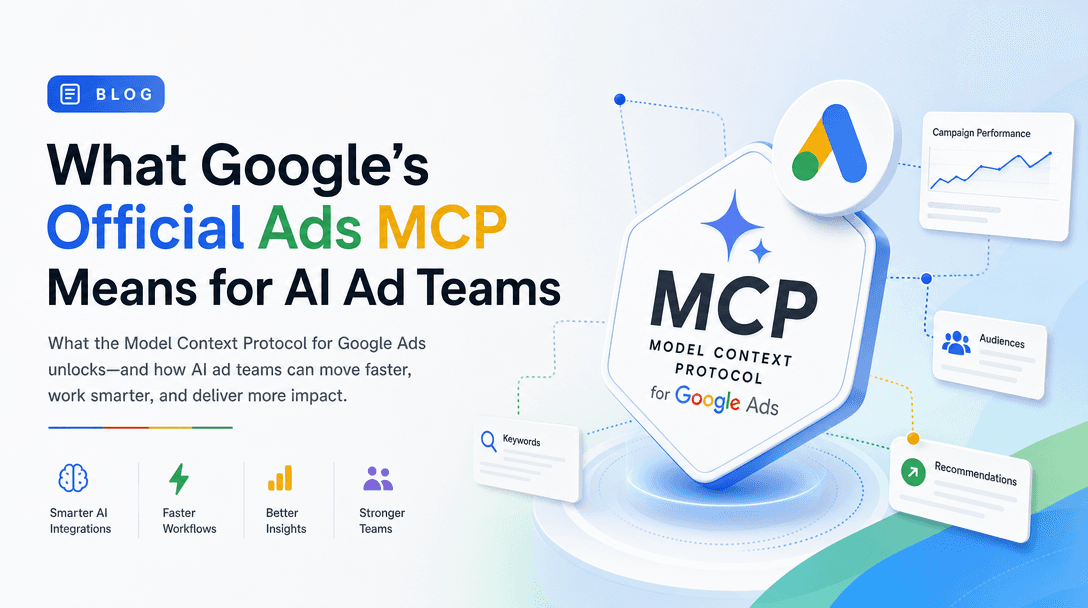
The Model Context Protocol (MCP) lets an AI assistant talk to your Google Ads account through a structured, governed interface instead of a brittle scrape or a copy-pasted export. Google now ships an official Google Ads API MCP server, so you no longer have to trust a random community wrapper with your ad spend data. This guide walks through the full setup — prerequisites, credentials, client registration, and your first GAQL query — and ends with a tiered prompt library you can actually run on day one.
This is the hands-on setup piece. For the bigger picture — what MCP is, the connector landscape, and how to choose — start with our complete Google Ads MCP guide, the pillar this post belongs to. If you specifically want to wire it into Claude Desktop, jump to the connect Claude to Google Ads MCP walkthrough. And if you haven't picked a server yet, the ranked comparison of Google Ads MCP connectors is the place to decide.
What you'll have at the end
By the time you finish, your AI client (Claude Desktop, Cursor, or any MCP host) will be able to answer plain-English questions about your campaigns — "which campaigns wasted budget last week?" — by translating them into Google Ads Query Language (GAQL) and running them against the live API. No dashboards, no manual exports.
One thing to set expectations on up front: the official server is read-only. It reads your account; it does not change it. We cover that gotcha in detail below, because it shapes how you should think about the whole workflow.
Prerequisites
Google Ads API access is gated more tightly than most marketing APIs. Budget 30-60 minutes for the credential dance, and longer if your developer token still needs approval. You need four things before you touch the server.
| Prerequisite | What it is | Where to get it |
|---|---|---|
| Google Ads account | A live account (or MCC manager account) with campaigns | ads.google.com |
| Developer token | Authorizes your project to call the Google Ads API | Google Ads → Tools → API Center |
| OAuth 2.0 client | Desktop/Web client ID + secret for user auth | Google Cloud Console → Credentials |
| Refresh token | A long-lived token minted from the OAuth flow | Generated once via the OAuth consent flow |
A few notes that trip people up:
- The developer token starts in "Test" access. A freshly issued developer token can only query test accounts until Google approves it for Basic or Standard access. If your queries return real data, you already have at least Basic access; if they error on production accounts, request elevated access in the API Center.
- Use an MCC (manager) account if you have one. When you manage multiple clients, point the server at your manager account's customer ID and pass the child account's ID as the
login-customer-id/ target customer at query time. - You authenticate as a Google user, not as the account. The OAuth refresh token represents a real person who has access to the Ads account — so use a service-style Google identity that won't lose access when someone leaves.
Step 1 — Enable the API and create the OAuth client
In the Google Cloud Console, create (or pick) a project and enable the Google Ads API under APIs & Services. Then create an OAuth 2.0 Client ID. For a local MCP server running on your own machine, a Desktop app client type is the simplest — it avoids redirect-URI headaches.
Download the client JSON or copy the client ID and client secret. You'll combine these with the developer token in a moment.
Step 2 — Mint a refresh token
The OAuth client only proves which app is asking. You still need a refresh token that proves which user is granting access. The Google Ads API client libraries ship a small auth script for exactly this. Run it once and complete the consent screen in your browser.
# Example: using the Python client library's auth helper
python -m google.ads.googleads.oauth2.generate_user_credentials \
  --client_id "YOUR_CLIENT_ID" \
  --client_secret "YOUR_CLIENT_SECRET"
It opens a browser, you approve the scope (https://www.googleapis.com/auth/adwords), and it prints a refresh token. Store it like a password — it's a durable key to your ad account data.
Step 3 — Install or clone the server
Install the official Google Ads MCP server. The exact package name and runtime are documented on Google's MCP server reference page; the pattern below is the typical local install.
# Clone the official server and install dependencies
git clone https://github.com/googleads/google-ads-mcp.git
cd google-ads-mcp
pip install -r requirements.txt
If a hosted or uvx/npx-style invocation is offered, you can skip the clone and let your MCP client launch the server on demand — but a local clone is the most transparent way to see exactly what it's doing with your credentials.
Step 4 — Configure credentials
The server reads its credentials from environment variables (or a config file). At minimum you provide the four values from the prerequisites, plus the customer ID you want to query.
export GOOGLE_ADS_DEVELOPER_TOKEN="your-developer-token"
export GOOGLE_ADS_CLIENT_ID="your-oauth-client-id"
export GOOGLE_ADS_CLIENT_SECRET="your-oauth-client-secret"
export GOOGLE_ADS_REFRESH_TOKEN="your-refresh-token"
export GOOGLE_ADS_LOGIN_CUSTOMER_ID="1234567890"   # MCC, digits only, no dashes
Two formatting rules save a lot of debugging: customer IDs are digits only (strip the dashes Google shows in the UI), and the login customer ID is your manager account when you operate through an MCC, while the target customer ID (the child account you're querying) is passed per request.
Step 5 — Register it with your MCP client
MCP clients discover servers from a JSON config. For Claude Desktop, that's claude_desktop_config.json; for Cursor and others the shape is nearly identical. Add the server under mcpServers and pass the credentials through env.
{
  "mcpServers": {
    "google-ads": {
      "command": "python",
      "args": ["-m", "google_ads_mcp"],
      "env": {
        "GOOGLE_ADS_DEVELOPER_TOKEN": "your-developer-token",
        "GOOGLE_ADS_CLIENT_ID": "your-oauth-client-id",
        "GOOGLE_ADS_CLIENT_SECRET": "your-oauth-client-secret",
        "GOOGLE_ADS_REFRESH_TOKEN": "your-refresh-token",
        "GOOGLE_ADS_LOGIN_CUSTOMER_ID": "1234567890"
      }
    }
  }
}
Restart the client fully (quit and reopen — a window reload often isn't enough). When it relaunches, the Google Ads tools should appear in the client's tool list. If they don't, check the client's MCP log: a missing tool almost always means the server crashed on startup, usually from a malformed credential. For a Claude-specific, screenshot-level version of this step, see the connect Claude to Google Ads MCP guide.
Step 6 — Run your first GAQL query
Everything the server reads, it reads through GAQL — Google Ads Query Language, a SQL-like syntax purpose-built for the Ads API. The beauty of MCP is that you rarely write GAQL by hand; you ask in English and the assistant generates it. But it helps to see one so you understand what's happening under the hood.
SELECT
  campaign.name,
  metrics.cost_micros,
  metrics.conversions,
  metrics.average_cpc
FROM campaign
WHERE segments.date DURING LAST_7_DAYS
ORDER BY metrics.cost_micros DESC
A couple of GAQL realities worth knowing: cost is reported in micros (1,000,000 micros = one unit of your account currency, so divide by a million to get dollars), and dates use named ranges like LAST_7_DAYS, LAST_30_DAYS, or explicit BETWEEN '2026-05-01' AND '2026-05-31'. A good MCP client handles the micros conversion for you; if your numbers look 1,000,000× too big, that's why.
In your client, just type: "Show me my top 5 campaigns by spend in the last 7 days, with conversions and CPA." The assistant will compose a GAQL query close to the one above, run it through the server, and return a clean table.
The read-only gotcha (read this before you build a workflow)
Here is the single most important thing to internalize about the official Google Ads MCP server, and the reason it appears in Google's own documentation: it is read-only. The server exposes the reporting surface of the Ads API. It will happily pull spend, conversions, search terms, and quality signals all day long. It will not pause a campaign, adjust a bid, add a negative keyword, or change a budget.
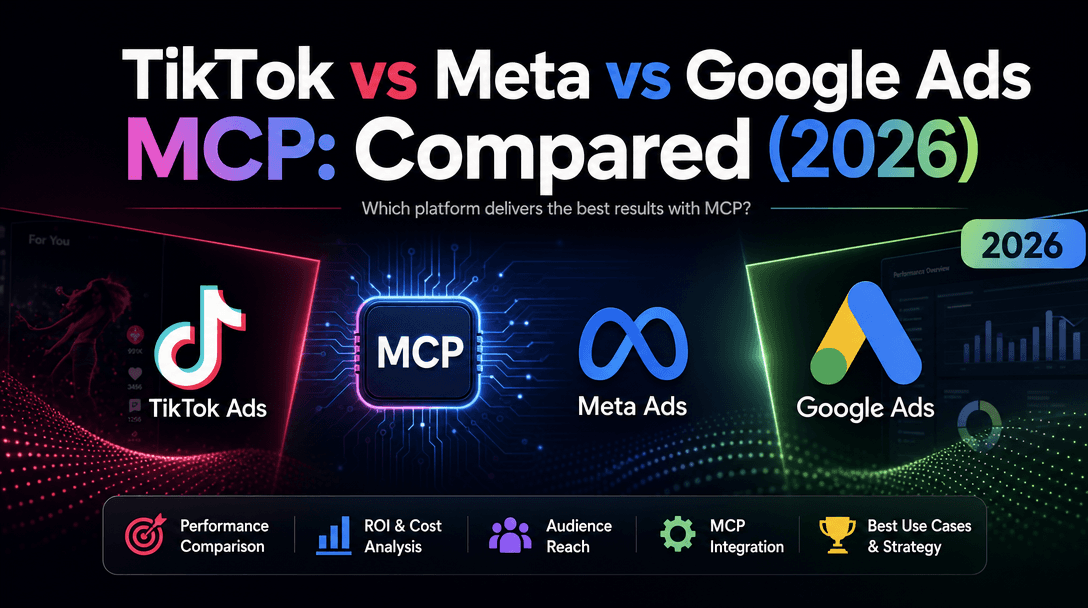
This is a deliberate, defensible design choice, and it sets up an interesting contrast across platforms. The Meta Ads path is moving toward read and write — an assistant can not only report on Meta campaigns but, in some configurations, act on them. Google's official path keeps the AI on the analysis side of the line and leaves the action to a human in the Google Ads UI. (If you run cross-platform, the Meta Ads MCP setup guide is the companion to this one — and the operating-model difference is worth understanding before you standardize a workflow.)
What this means in practice: your Google Ads MCP workflow is a decision-support loop, not an autopilot. The assistant finds the wasted spend, ranks the underperformers, and drafts the change list. You — or your standard change-management process — apply the changes. That's not a limitation to route around; for most teams it's the safer default. You get AI-speed diagnosis without handing budget authority to a model that can hallucinate a WHERE clause.
A real, tiered GAQL prompt library
The honest gap in most "how to use the Google Ads MCP" content is that it stops at "now you can ask it anything!" — which is useless, because a blank prompt box is paralyzing. So here's the prompt set we actually run, organized by how deep you're going. Think of it as a ladder: triage every day, diagnose when a number moves, decide once a week.
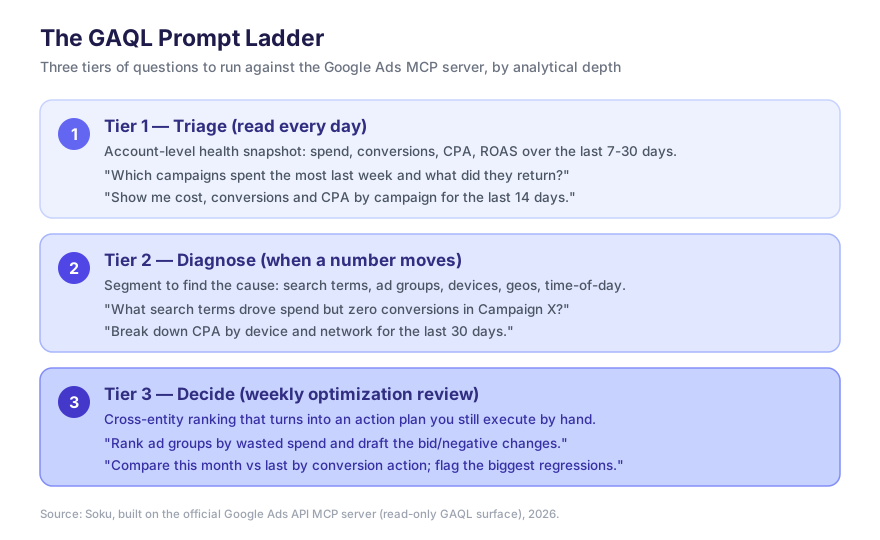
Tier 1 — Triage (your daily 60-second read)
These are account-level pulse checks. Run them every morning; they tell you whether anything needs attention before you open the dashboard.
- "Show me total cost, conversions, and CPA for the whole account over the last 7 days vs the previous 7 days."
- "Which campaigns spent the most yesterday, and what did each return?"
- "List any campaigns with spend above $100 and zero conversions in the last 3 days."
- "What's my account-wide ROAS this month so far?"
Tier 2 — Diagnose (when a number moves the wrong way)
When triage flags something, you segment to find the cause. This is where GAQL's join-like FROM resources earn their keep.
- "For Campaign X, show the search terms that spent money but produced no conversions in the last 14 days."
- "Break down CPA by device and network for Campaign X over the last 30 days."
- "Which ad groups in this campaign have a CTR below the campaign average?"
- "Show conversions by hour of day for the last 14 days — when are we wasting budget?"
- "List keywords with quality score below 5 that are still spending."
Tier 3 — Decide (your weekly optimization review)
These are cross-entity, ranked questions that turn data into an action plan. The assistant can't apply the changes (read-only), but it can draft them — and a drafted change list is 80% of the work.
- "Rank every ad group by wasted spend (cost on zero-conversion search terms) and draft the negative keywords I should add."
- "Compare this month vs last month by conversion action, and flag the three biggest regressions with a likely cause."
- "Which campaigns are budget-constrained (lost impression share due to budget) and how much extra spend would it take to close the gap?"
- "Build me a prioritized optimization list: top 10 changes ranked by estimated savings."
The Tier-3 prompts are the ones that justify the whole setup. They compress what used to be an hour of pivot-tables into a single conversation — and because the output is a proposal you review, the read-only boundary becomes a feature, not a friction.
Troubleshooting the common failures
| Symptom | Likely cause | Fix |
|---|---|---|
| Tools don't appear in the client | Server crashed on startup | Check the MCP log; usually a malformed credential or missing env var |
DEVELOPER_TOKEN_NOT_APPROVED | Token still in test access | Request Basic/Standard access in the API Center |
AUTHENTICATION_ERROR | Stale or revoked refresh token | Re-run the OAuth flow to mint a fresh refresh token |
USER_PERMISSION_DENIED | The OAuth user lacks access to that customer ID | Grant the user access in Google Ads, or fix the login/target customer ID |
| Numbers look 1,000,000× too large | Cost is in micros | Divide cost_micros by 1,000,000 |
Where Soku fits
The official server gives you a clean, governed read path into one account — which is exactly right for a single advertiser running a careful, human-in-the-loop process. The friction shows up when you scale: multiple accounts, multiple platforms, and a need to act on findings, not just read them.
That's the seam Soku works in. Soku is an AI ad-automation agent that connects across Google and Meta, runs this same kind of GAQL-driven analysis, and — where you grant it authority — closes the loop into changes, while keeping the same human-review discipline the read-only model trains you into. The Google Ads MCP server is a great way to learn the diagnose-decide rhythm; Soku is what you graduate to when that rhythm needs to run across a whole portfolio.
Quick recap
- Prerequisites: Google Ads account, approved developer token, OAuth client, refresh token.
- Setup: enable the API → create the OAuth client → mint a refresh token → install the server → set credentials → register with your MCP client → run a GAQL query.
- The gotcha: the official server is read-only — it's a decision-support loop, not an autopilot (Meta's path leans read-write; Google's keeps action with the human).
- The payoff: the tiered prompt ladder turns a blank prompt box into a daily triage, on-demand diagnosis, and a weekly drafted optimization plan.
Set it up once, run the Tier-1 prompts tomorrow morning, and you'll never go back to manually exporting a campaign report again.