 Soku AI
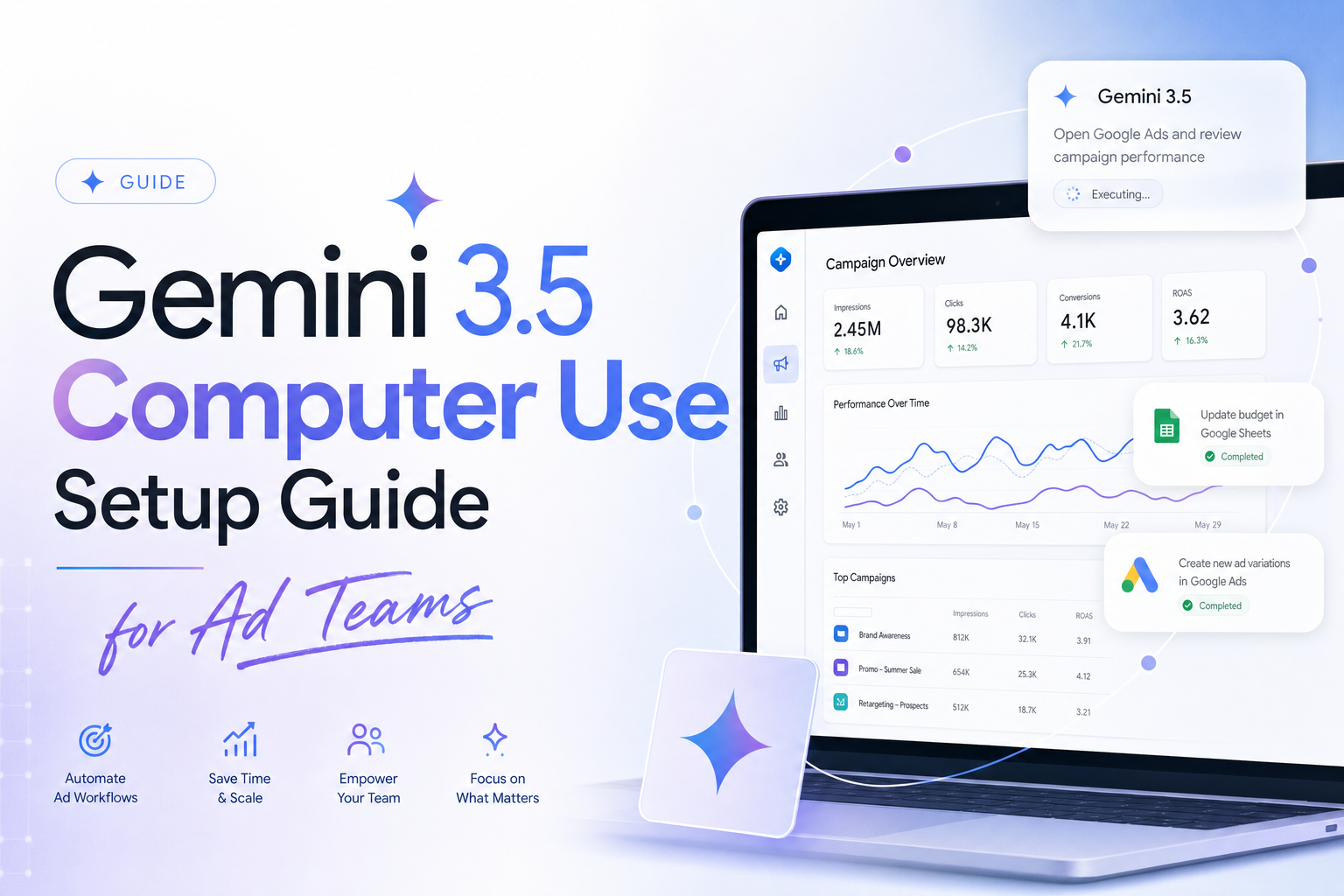
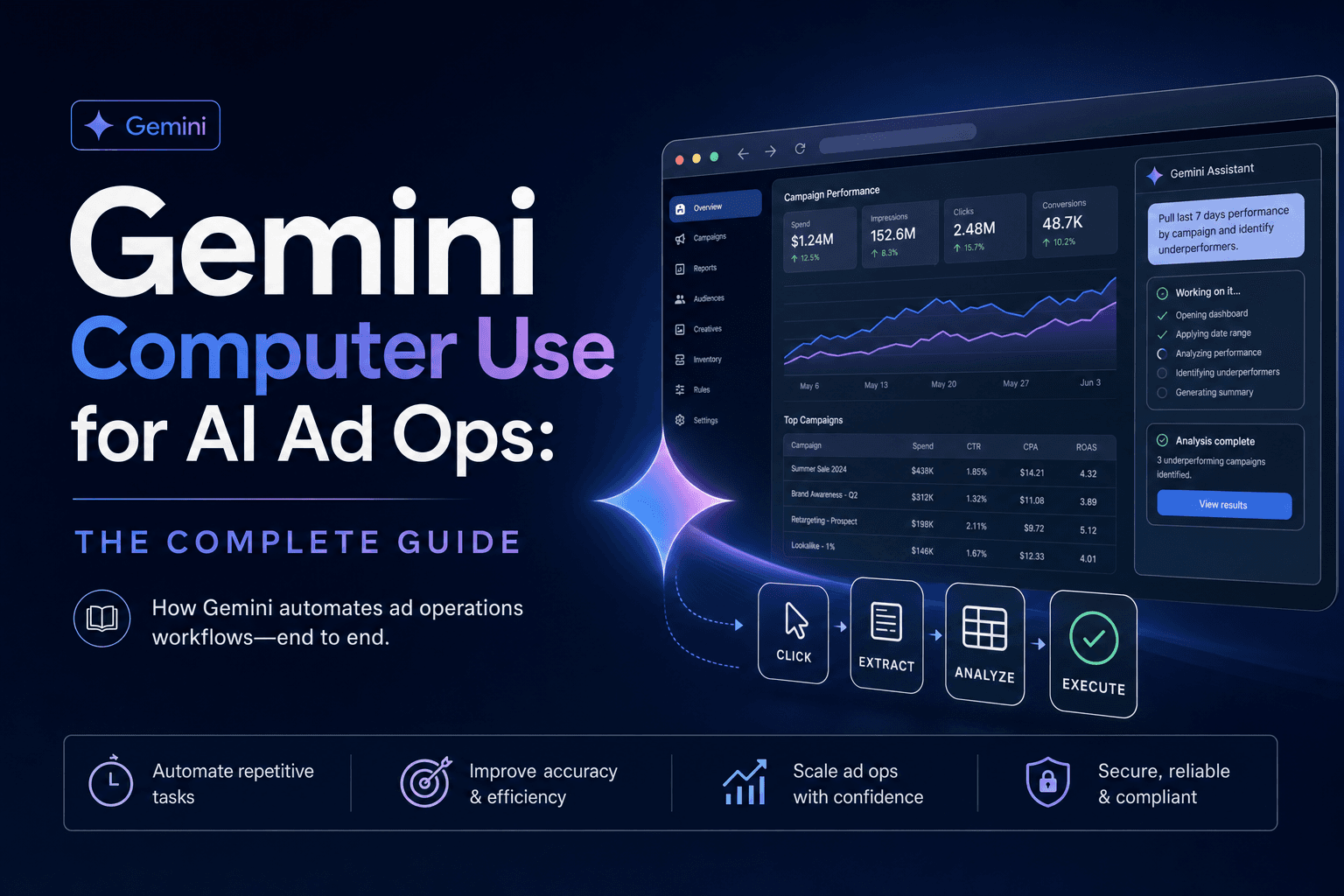
Gemini 3.5 Flash computer use is useful only when it is wrapped in a disciplined harness. The model can look at screenshots and suggest UI actions, but your application owns the browser, the permissions, the logging, the allowed actions, and the approval gates.
For the broad overview, start with the Gemini computer-use guide for AI ad ops. This page is the implementation spoke: how an ad team should set up the first safe browser-agent loop without pretending it is ready to run spend unattended.
The target workflow
Start with a read-only QA task:
"Open this landing page, inspect the hero, CTA, form, mobile layout, UTM behavior, and tracking indicators. Return pass/fail findings with screenshot evidence. Do not submit forms or change settings."
That prompt is intentionally boring. It has bounded scope, visible success criteria, and low blast radius. If the agent fails, a human loses minutes, not budget.
The architecture
A production-quality loop has six parts:
| Layer | Responsibility |
|---|---|
| Task router | Decides whether this is a browser-agent task or a structured API task |
| Browser sandbox | Runs Playwright, Browserbase, or an internal browser profile with limited permissions |
| Gemini request | Sends the user goal, current screenshot, URL, tool config, and constraints |
| Action gate | Allows safe actions, blocks dangerous actions, asks for confirmation when needed |
| Evidence logger | Stores screenshots, proposed actions, executed actions, URLs, and final findings |
| Human approval | Reviews any action that can submit, spend, delete, grant access, or alter account state |
The model is one component. The harness is the product.
Step 1: Define the environment
Google's docs support browser, mobile, and desktop environments. For ad ops, use browser first. It is easier to sandbox, easier to log, and closer to the surfaces marketing teams actually check: landing pages, platform UIs, ad previews, analytics dashboards, and competitor sites.
Run the browser in a separate profile. Do not use a human's everyday Chrome profile. The browser should have only the cookies and permissions needed for the task, and it should not carry broad admin access unless the workflow has explicit approval gates.
Step 2: Start with screenshots, not trust
Computer use works by observation. Your application sends a screenshot and receives a proposed action. Treat the screenshot as the evidence boundary.
For a landing-page QA task, log:
- starting URL
- viewport size
- screenshot before each action
- action proposed by Gemini
- action allowed or blocked by the gate
- final screenshot
- final checklist result
This makes the workflow reviewable. If the agent says the form failed, the team can see what it saw.
Step 3: Exclude dangerous actions
For the first ad-ops version, block:
- billing pages
- account-access pages
- budget and bid edits
- campaign activation
- deletion
- form submission with customer data
- password and 2FA screens
- file upload unless explicitly requested
The agent can still navigate, scroll, inspect, type into harmless test fields, and capture findings. That is enough to make the first workflows valuable.
Step 4: Give it a task-specific rubric
Generic prompts create generic findings. Each browser-agent workflow needs a rubric.
For landing-page QA:
| Check | Pass condition |
|---|---|
| Hero promise | The first viewport matches the ad offer |
| CTA | Primary CTA is visible and action-oriented |
| Form | Required fields are clear and error states are readable |
| Mobile layout | No text overlap, broken hero, or hidden CTA |
| UTM | Tracking parameters survive navigation where expected |
| Pixel/tracking | Debug indicators or network events are visible when available |
For creative preview QA:
| Check | Pass condition |
|---|---|
| First frame | Product or promise is visible immediately |
| Safe area | Captions and CTA are not clipped |
| Brand | Logo, colors, and claims match the brief |
| Format | Aspect ratio fits the placement |
| Risk | No unsupported claims or misleading before/after language |
Step 5: Pair it with structured data
Do not make the browser agent read numbers from dashboards if an API exists. Pull metrics through Google Ads MCP, Meta MCP, GA4, Shopify, or Soku's own connectors. Then use computer use to inspect the UI surface behind a finding.
Example:
- Structured data says conversion rate fell after a landing page update.
- Browser agent opens the landing page, tests the CTA path, and captures the broken mobile form.
- Soku writes the recommendation: pause scaling, fix mobile form, retest before increasing budget.
The data tells you where to look. Computer use shows what a human would have seen.
Step 6: Keep the first deployment read-only
For the first 30 days, treat Gemini computer use as an inspector:
- Week 1: landing-page QA only.
- Week 2: creative-preview QA.
- Week 3: reporting screenshot reconciliation.
- Week 4: platform alert triage.
Only after the logs are boring should you allow low-risk actions such as downloading a report, filling a test-only form, or navigating to a specific settings screen. Spend-impacting actions should stay behind human approval.
How Soku fits
Soku already knows when a campaign needs attention because it reads performance data across channels. Gemini computer use gives Soku a way to inspect the screens behind that signal. The result is a stronger recommendation: not "CPA rose," but "CPA rose after the landing page changed; mobile CTA is below the fold; fix before scaling."
That is the right role for browser agents in ad ops. They do not replace the media buyer. They make the diagnosis faster and more verifiable.
FAQ
Can I use Gemini computer use without Playwright?
You need some client-side execution environment. Google's examples assume a browser automation layer; Playwright is the practical default.
Should the agent log screenshots?
Yes. Screenshots are the audit trail for browser-agent work.
Should the first workflow touch ad platforms?
Only for read-only inspection. Start with landing pages and previews before platform settings.