Soku AI
All tools

AI Image Enhancer Make a Bad Image Usable

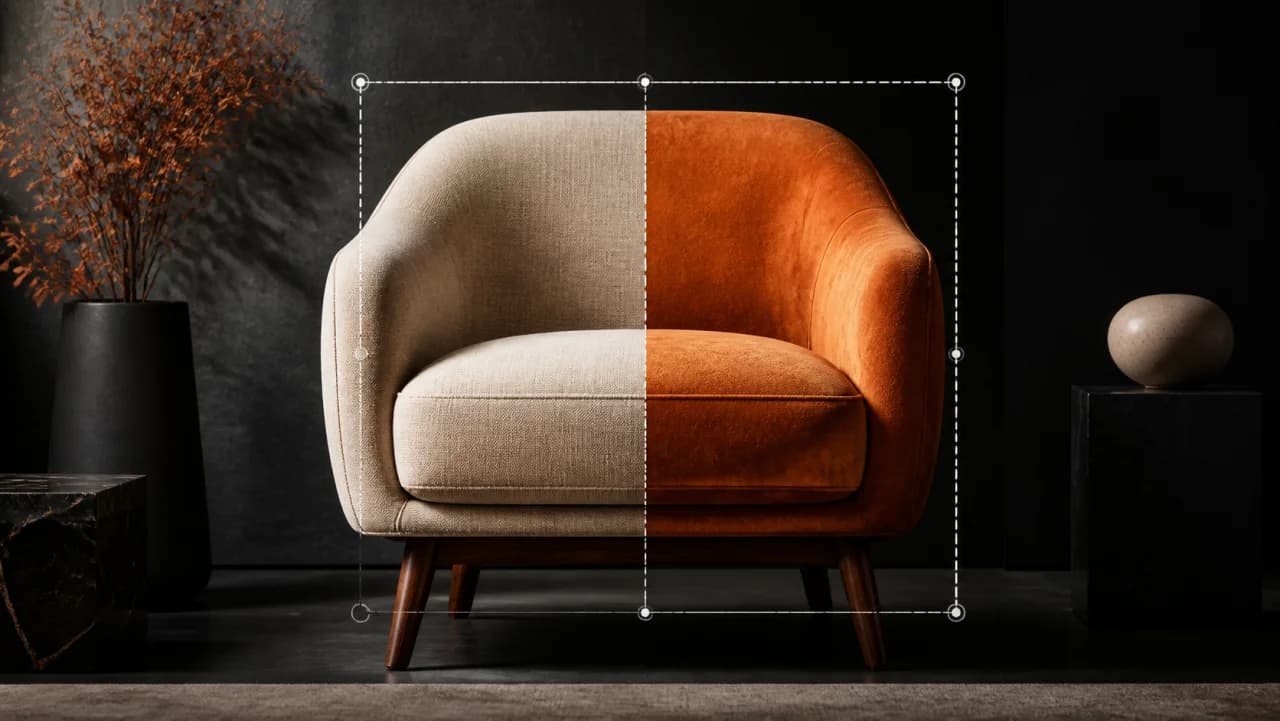
Some images are almost right.

Image EnhancementDetail Recovery
  • 2x resolution with face enhancement
  • No prompt, no settings to tune
  • PNG download, no watermark

Three deliberate steps

01

Upload the image you were going to bin

One file, any common format. There is nothing to configure: no scale factor, no model picker, no sliders. The worse the source, the more obvious the difference — a photo that is already clean and large has little left to recover.
02

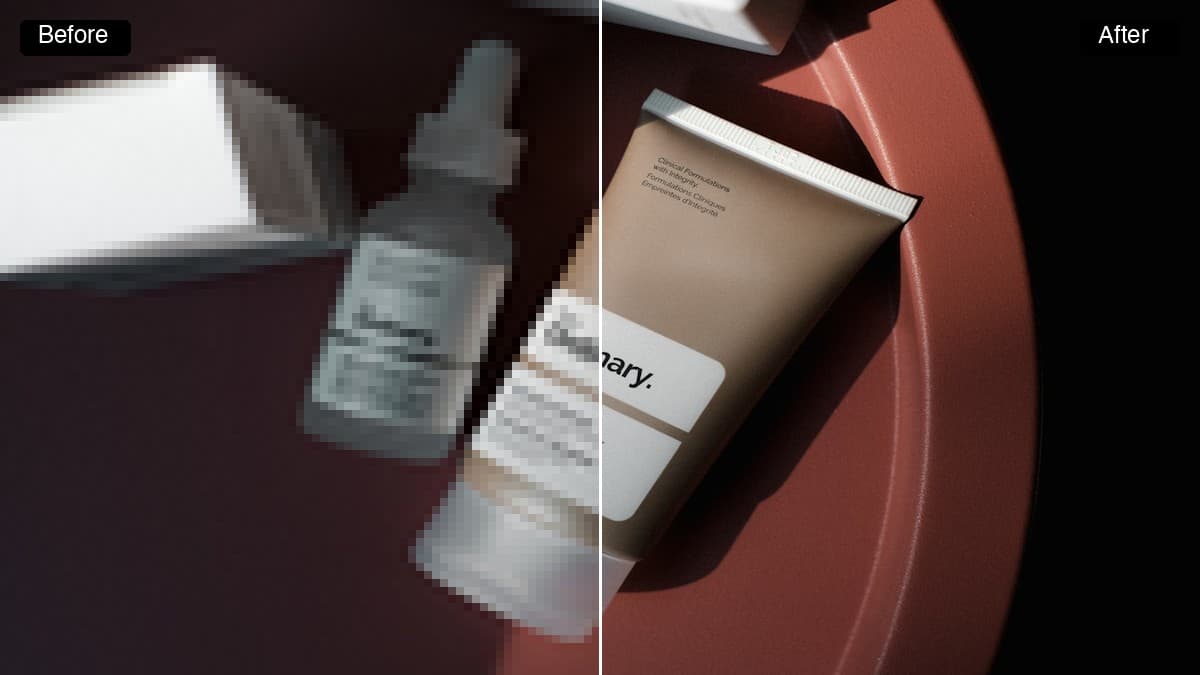
Let it rebuild detail rather than sharpen it

This is not an unsharp mask. Sharpening raises local contrast on edges that already exist, which is why over-sharpened ad creative looks crunchy and haloed. The model reconstructs the detail the compression threw away, then renders it at 2x — which is why text edges and skin come back rather than getting harder.

03

Take it straight into Creatives

The enhanced PNG hands into the Creatives canvas, so the image you just rescued can be cropped to each placement and shipped to Meta, Google and TikTok without a round trip through a desktop editor.

Use cases

Who reaches for this, and when

Performance marketers

Rescue the creative that is already winning

The single most expensive image in an account is the one that converts and is too low-resolution to run in a new placement. Enhancing it is cheaper and faster than commissioning a replacement and hoping the replacement performs the same.

Ecommerce and marketplace sellers

Meet the platform’s minimum image spec

Meta, Google Shopping and the marketplaces all reject or downrank images below their size floor. A supplier catalogue full of 600px product shots is a listing problem before it is a creative problem, and this is the shortest path through it.

Agencies inheriting an account

Make a handed-over asset library usable

Brand folders arrive as whatever survived four years of Slack, email and Drive re-compression. Running the library through enhancement first means the creative team is designing with the assets rather than around them.

Questions before you run it

How is this different from your image upscaler?
It is the same engine and the same single charge, so if you already know your problem is resolution, use the upscaler page and nothing changes. This page exists because most people do not arrive knowing that. "This photo looks bad" covers softness, sensor noise, JPEG artefacts and small size all at once, and the same Topaz Precision pass addresses all four. Pick whichever page matches how you would describe the problem.
Can it recover detail that is not in the file?
No, and be suspicious of any tool that claims otherwise. It reconstructs detail that the original captured and compression discarded. It cannot read a licence plate that was never resolved, un-blur a photo taken badly out of focus, or turn a 100px thumbnail into a print-ready hero. If the information was never there, the output will be a plausible invention — fine for a background, not fine for a product claim.
What happens to faces?
Faces get specific treatment, because they are what a viewer inspects first and what generic upscaling wrecks most visibly — a smeared face reads as fake instantly and kills the ad. Expect eyes, hairlines and skin texture to come back rather than blur upward. On a heavily degraded face the result is still a reconstruction, so check identity before you run it as a testimonial.
How much larger does the image get?
Twice the width and twice the height, so four times the pixel area. A 1024x1024 source comes back 2048x2048. That is normally the jump from "fails the platform’s minimum" to "runs everywhere", which is the practical bar this is aimed at rather than a bigger multiplier for its own sake.
What does a run cost?
The free plan lets you enhance an image without a card. After that each run is a single flat charge shown on the button before you press it — one price per image, not a price per megapixel you have to work out in advance.