 Soku AI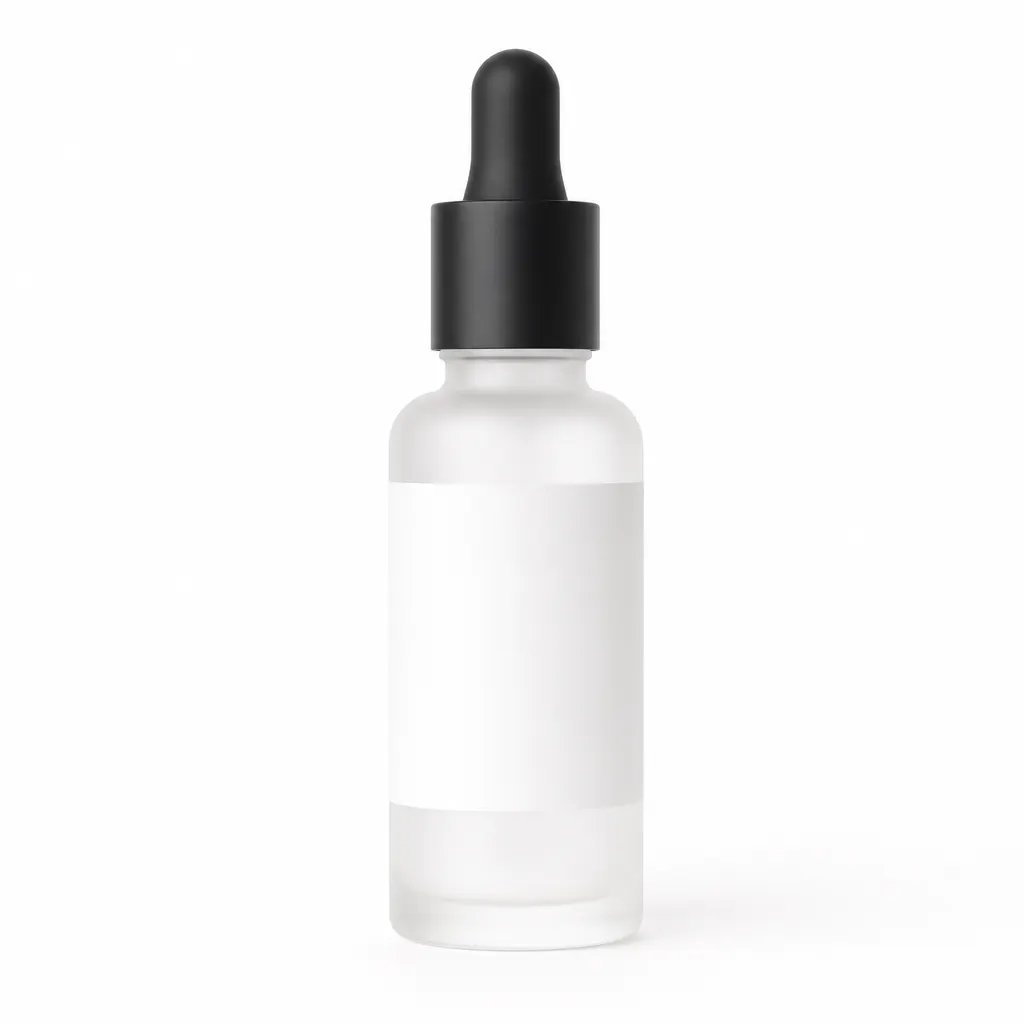
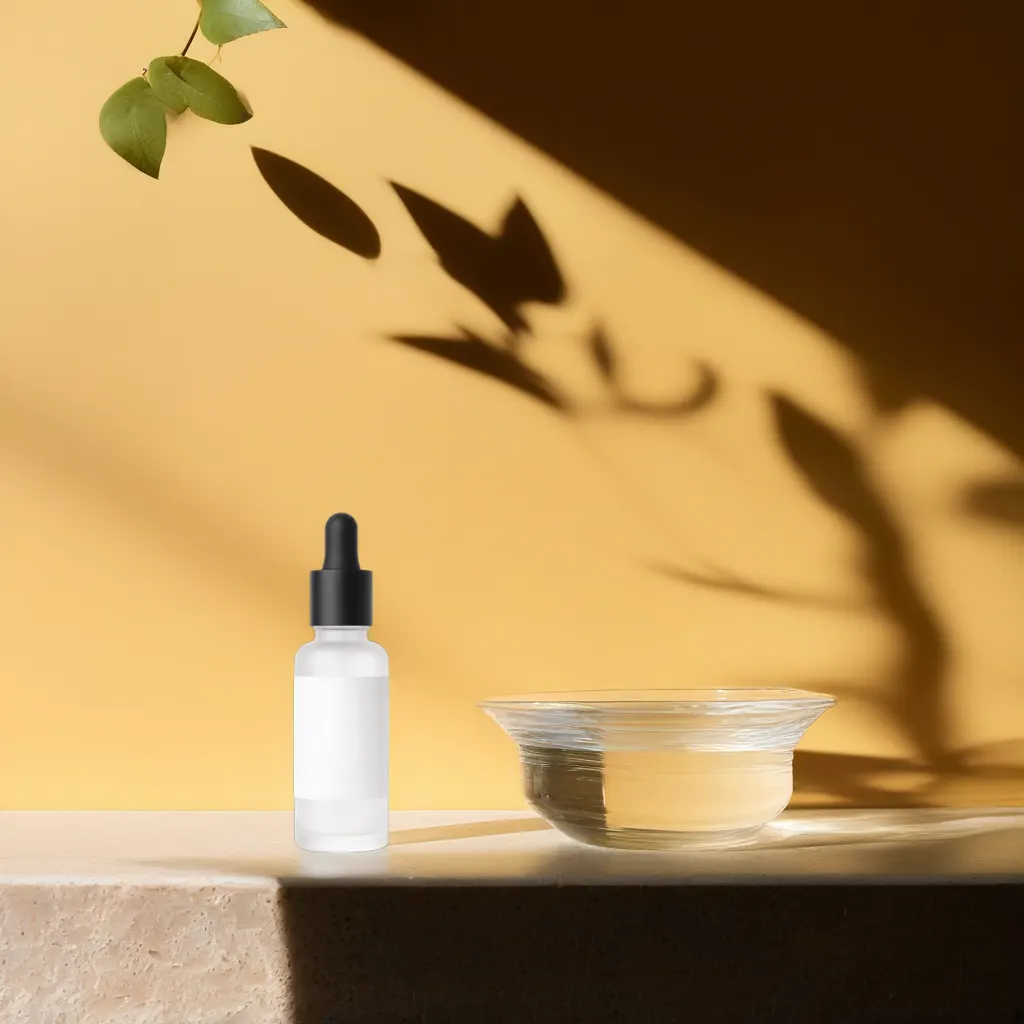
imageScene and lighting
Serum bottle
Packshot on white moved onto travertine in morning window light. Bottle, cap and label untouched.
Source: Soku demo asset, generated for this page
Upload the product as you have it and describe where it should sit. The product itself is preserved; the scene, the surface, and the light around it are generated.Upload the product as you have it and describe where it should sit.
Sample result gallery
The product in each right-hand frame is pixel-for-pixel the one uploaded on the left. Only the surface, background and lighting are generated, so nothing about the item itself is a claim you cannot stand behind.
Packshot on white moved onto travertine in morning window light. Bottle, cap and label untouched.
Source: Soku demo asset, generated for this page
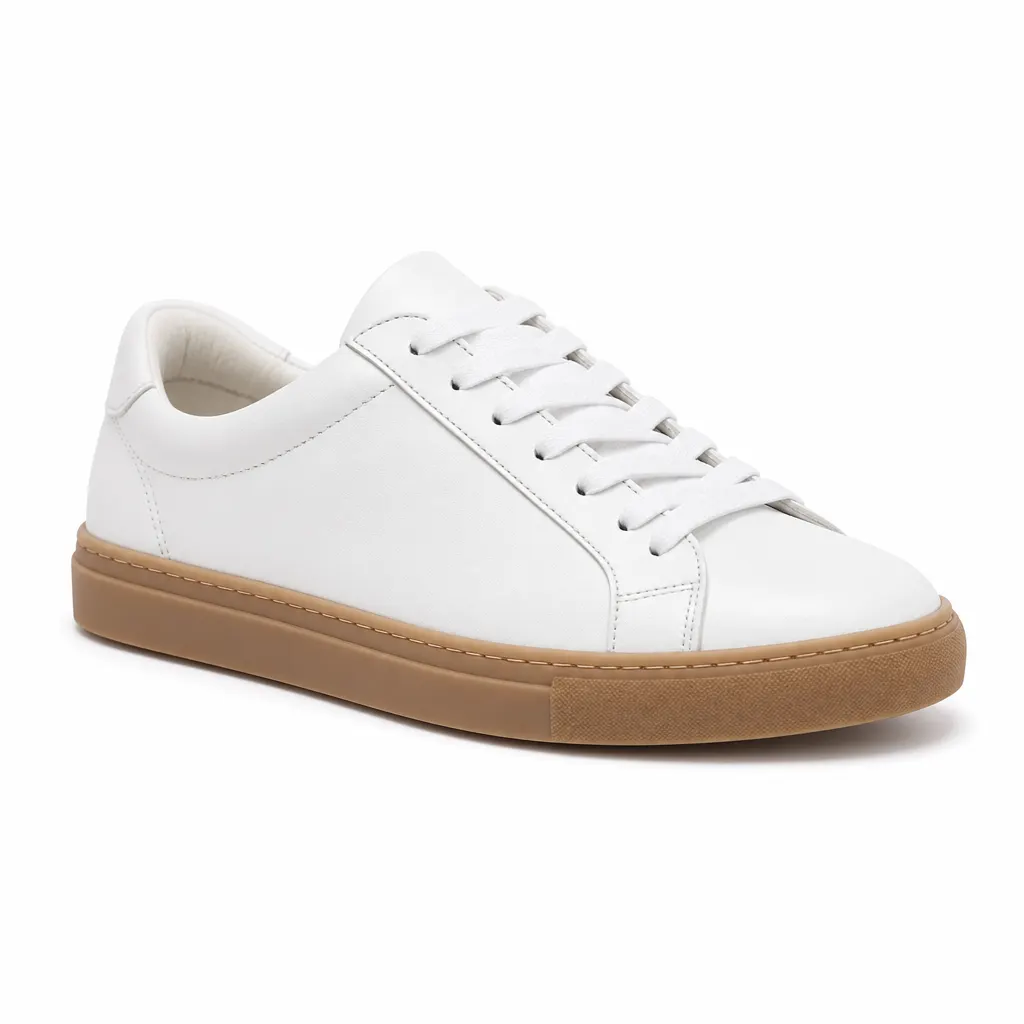
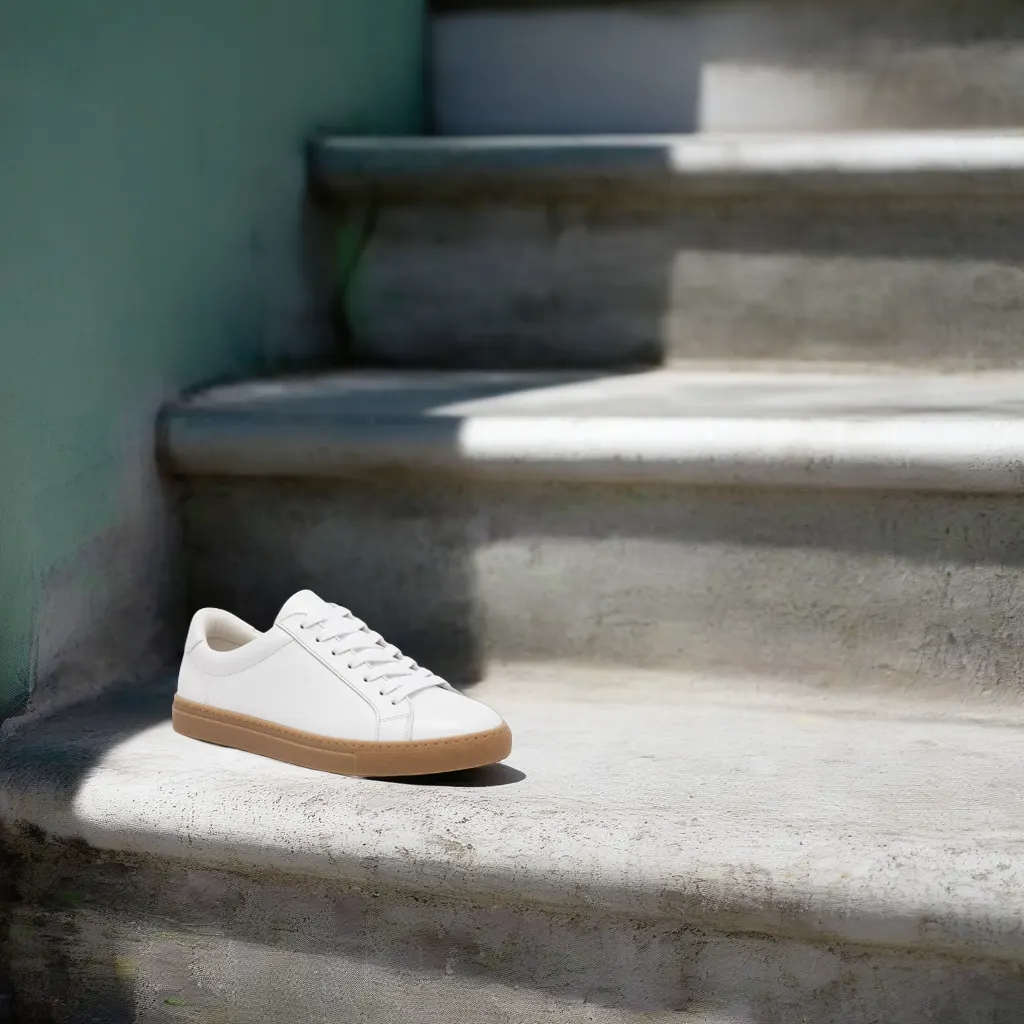
Catalogue cut-out placed on a concrete step in hard afternoon sun, with a real cast shadow.
Source: Soku demo asset, generated for this page
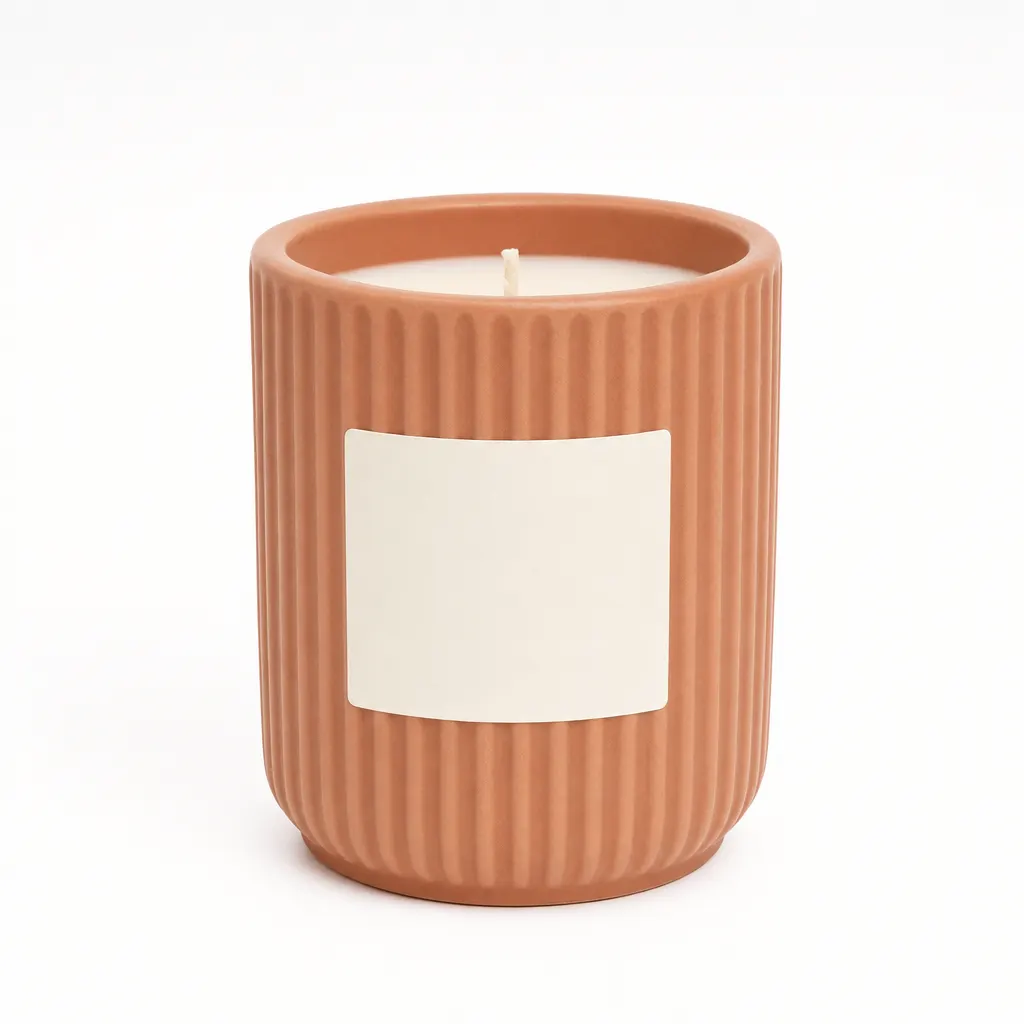
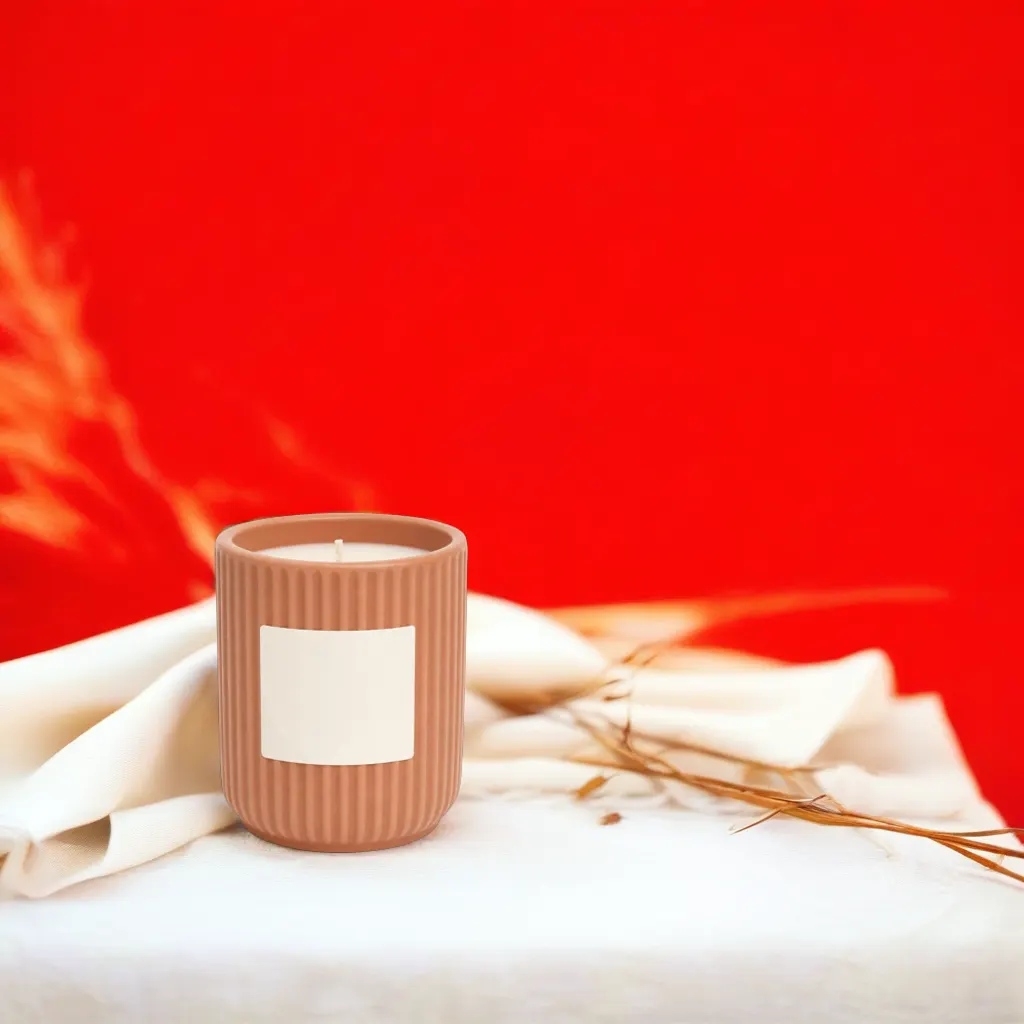
Studio still relit on draped linen in warm evening light. The jar and its blank label are unchanged.
Source: Soku demo asset, generated for this page
A clear shot of the item, ideally already cut out or on a plain background.
"On a marble kitchen counter, morning light", "on wet stone, moody studio key".
The product is placed and relit in the described setting.
Use cases
Turn the one plain shot a supplier sent into something that can carry an ad.
Move the same SKU from summer to holiday by changing the scene description.
Run the product against five settings and let performance choose the hero shot.