 Soku AI
Almost every Google Merchant Center guide is written in the order the sign-up wizard asks for things. That order is wrong, and it is why so many people finish setup, upload a feed, and then spend a fortnight fighting disapprovals.
Merchant Center is not really a sign-up flow. It is a verification system with a product database attached, and it will happily let you complete every visible step while a prerequisite you skipped three screens ago quietly guarantees that your products get rejected.
So this guide is ordered by what actually breaks. Do it in this sequence and most of the classic disapprovals never happen.
Last verified: 2026-08-10. Attribute requirements, character limits and dates below are from Google's own product data specification. Everything else is Soku's analysis of the failure modes, and is labelled.
Step 0: Fix the website before you touch Merchant Center
This is the step people skip, and it causes more disapprovals than feed errors do.
Google checks your site, not just your feed. Before you create the account, your store needs:
- HTTPS across the whole site, not just checkout.
- A visible business name, contact method and physical address. A contact form alone is frequently insufficient.
- A returns and refunds policy page, reachable from the footer.
- A shipping policy page with actual costs or a clear statement of how they are calculated.
- A privacy policy page.
- Prices and availability on the product page that match what you will send in the feed.
That last one is the killer. Google crawls your landing page and compares it to your feed. A price mismatch — including one caused by a currency-switching widget, a logged-in discount, or a geo-redirect — produces the price mismatch disapproval, and it is the single most common reason a technically perfect feed still fails.
Soku analysis. If your site does dynamic pricing of any kind, resolve what an anonymous crawler in your target country sees before you build the feed. Open your product page in a private window with a VPN set to the country you are targeting and write down the price. That is the number your feed must contain. Everything else is negotiable; this is not.
Step 1: Create the account and claim the domain
Two separate things happen here and conflating them causes confusion later.
Verification proves you control the website. Claiming links that verified domain to this specific Merchant Center account. You need both, and only one account can claim a domain at a time — which is exactly why an agency migration goes wrong when the previous agency still holds the claim.
Verification methods, in the order we would try them:
- Google Tag Manager — fastest if GTM is already deployed.
- HTML tag in
<head>— reliable, needs a developer or theme access. - HTML file upload — reliable, awkward on hosted platforms that do not expose the filesystem.
- Google Analytics — works if you already have GA on the site with the right permissions.
Then set your business information, shipping settings, and returns policy inside Merchant Center. These are not paperwork. Shipping settings in particular feed directly into whether your ads show a delivery estimate, and missing shipping configuration for a target country suppresses products in that country entirely.
Step 2: Understand the attributes before you build the feed
This is where the real work is. Here are the attributes Google documents as required, with the limits that matter.
| Attribute | Status | Limit / values |
|---|---|---|
id | Required | Max 50 characters, unique, stable |
title | Required | Max 150 characters |
description | Required | Max 5000 characters |
link | Required | Must be on your claimed domain |
image_link | Required | See the 2027 rule below |
availability | Required | in_stock, out_of_stock, preorder, backorder |
price | Required | ISO 4217 currency format |
brand | Required for new products | Max 70 characters. Exempt: movies, books, music |
gtin | Strongly recommended where one exists | Max 50 numeric characters |
condition | Required if used or refurbished | — |
availability_date | Required if availability is preorder | — |
mpn | Only if no manufacturer-assigned GTIN | Max 70 characters |
identifier_exists | Optional | Declares whether unique product identifiers exist |
The date to put in your calendar
From 31 January 2027, image_link images must be at least 500 × 500 pixels.
This is published in Google's current product data specification and it is the most consequential forward-dated change in the spec right now. If your catalog contains legacy imagery below that threshold — very common for older SKUs, and near-universal for anyone who migrated from a platform that generated 250px thumbnails — those products will stop being eligible.
Soku analysis. Audit this now rather than in January 2027. It is a one-line check against your image files and a potentially multi-week re-shoot or re-render if the answer is bad. This is exactly the kind of deadline that is trivial with sixteen months of notice and a crisis with two weeks.
The attributes people get wrong
id must be stable. If your platform regenerates product IDs on re-import, you lose the product's entire performance history every time. Google treats a changed id as a new product.
title is a ranking surface, not a label. Shopping matches queries against the title far more heavily than the description. Brand + Product + Key Attribute + Size/Colour outperforms your internal product name almost always. You have 150 characters; the first 70 or so are what shows.
gtin accuracy is enforced. A wrong GTIN is worse than no GTIN — it triggers incorrect identifier disapprovals and can suppress the product entirely. If you genuinely do not have one, set identifier_exists to no rather than inventing a value.
brand for own-label products is your own brand name. Not "Generic", not blank. "Generic" is a documented cause of disapproval.
Step 3: Choose how the feed gets there
Four routes, and the right one depends on how often your catalog changes.
| Method | Best for | Real cost |
|---|---|---|
| Platform app/integration (Shopify, WooCommerce, BigCommerce) | Most merchants under a few thousand SKUs | Least control over field mapping |
| Scheduled fetch of a hosted file | Custom stores that can generate XML/TSV | You own the file generation |
| Content API for Shopping | Large or fast-changing catalogs | Real engineering |
| Manual upload | One-off testing only | Do not run a business on this |
Soku analysis. Choose based on your availability churn, not your SKU count. A 500-SKU store where things sell out hourly needs API-level freshness far more than a 50,000-SKU store with stable stock. Stale availability is expensive twice: you pay for clicks on unbuyable products, and repeated availability mismatches damage account standing.
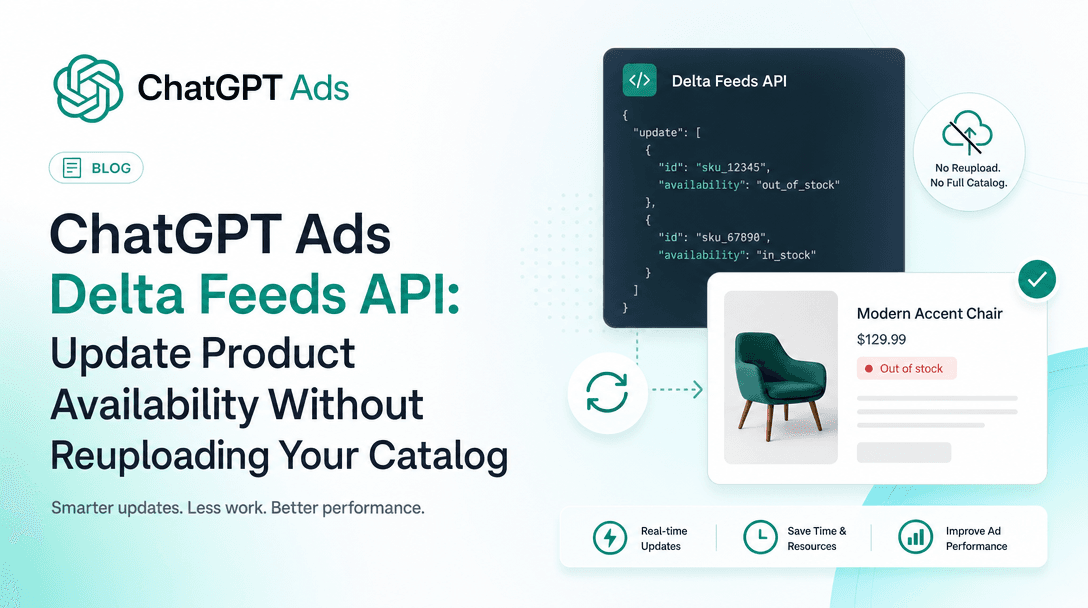
This is the same structural problem every ads platform with a catalog eventually has to solve. It is worth noting that ChatGPT Ads has just shipped a delta feed endpoint for exactly this reason — updating availability on individual variants without re-uploading the catalog. The direction of travel across the industry is towards event-driven availability updates and away from nightly full-file dumps.
Step 4: Link Google Ads and pick the campaign type
Link Merchant Center to Google Ads from within Merchant Center, then accept from the Ads side. Both halves are required and only doing one is a common stall.
Then the actual decision:
- Standard Shopping gives you product-group-level control, negative keywords, and visibility into search terms. Choose it when you need to control what you are paying for.
- Performance Max gives you reach across Shopping, Search, Display, YouTube, Gmail and Maps from one campaign, and takes most of the controls away in exchange.
Soku analysis. Start with Standard Shopping if you have never run Shopping for this catalog. You will learn which products and queries actually convert, and that knowledge is transferable. Performance Max on a cold account with no conversion history optimises against a signal it does not have yet, and you will not be able to see enough to diagnose why. Move to PMax once you know what good looks like. Our note on feeding PMax better assets covers what changes when you do.
Step 5: The disapproval triage order
You will get disapprovals. Work them in this order, because the categories are not equally expensive.
- Account-level issues first. A suspended account makes every product-level fix irrelevant. Policy violations, misrepresentation, and unverified business information sit here.
- Then whole-feed failures. Fetch errors, encoding problems, a broken file URL — one fix restores everything.
- Then systematic product errors. If 4,000 products fail with the same error, it is a mapping problem in one field, not 4,000 problems.
- Then individual products. Genuinely one-off issues, worth fixing last and in bulk.
The most common causes, in roughly the order we see them: price mismatch between feed and landing page; missing or invalid GTIN; image below the minimum or containing promotional overlay text; missing shipping configuration for the target country; landing page not on the claimed domain; and availability mismatch.
On promotional overlays specifically — text, logos, watermarks and "SALE" badges burned into the product image are a policy violation, not a style preference. This catches a lot of merchants who generated their imagery for social ads and reused it.
A realistic first-week sequence
- Day 1 — Fix the website: HTTPS, policy pages, business details, consistent anonymous pricing.
- Day 2 — Create the account, verify and claim the domain, configure shipping and returns.
- Day 3 — Build the feed against the attribute table above. Test with a 20-product subset first.
- Day 4 — Upload the full feed. Expect disapprovals. Triage in the order above.
- Day 5–7 — Wait out review, fix the systematic errors, then link Google Ads and launch a Standard Shopping campaign on your best-margin products only.
Do not launch on the whole catalog on day one. A small, clean, high-margin campaign tells you whether the plumbing works before there is enough spend for a mistake to matter.
Where this connects to the rest of your ads
Merchant Center is infrastructure. Once it is clean, the interesting questions move up a level: which products deserve budget, which creative wins on Shopping versus Meta versus TikTok, and how quickly you can act on a shift in performance. Those are the questions Soku is built for — it reads your ad accounts and GA4, generates and deploys creative across channels, and optimises toward ROAS.
But none of that helps if the feed is disapproved. Fix the infrastructure first.
Sources
- Google product data specification — all attribute requirements, character limits and the 31 January 2027 image rule, read 2026-08-10
Attribute requirements and limits are quoted from Google's documentation. Setup sequencing, the triage order and all recommendations are Soku's own analysis. Google revises the product data specification regularly — check the linked page before building against a specific field.