 Soku AI
Meta Pixel Helper has a new name, and most guides ranking for it haven't noticed. Meta's developer page now says Meta Ads Data Advisor is the extension "formerly Meta Pixel Helper." The page was updated October 6, 2026, and the old Pixel Helper docs URL now redirects to it. On 2026-10-23 the Chrome Web Store listing for the same extension ID was titled Meta Ads Data Advisor, version 5.11.0, updated October 19, 2026, with 3,000,000 users. The diagnostics people install it for are still there. Meta says "all existing diagnostic features continue to work." What changed is everything around them: new statuses, an AI-driven setup mode and much broader browser permissions.
This guide is for the person who opened the extension, saw a red or yellow message and wants to know what it means. It covers every error and warning Meta documented for Pixel Helper and the new status labels. It also explains which problems the extension can't see at all, and how browser-side Pixel checks relate to the Conversions API.
What we did and didn't do. On 2026-10-23 we read Meta's current Data Advisor page, the Meta Pixel get-started, conversion tracking, reference, single-page app and multiple-Pixel guides, and the Conversions API pages on deduplication, testing and verification. Meta's current page no longer lists the named error messages. Those come from the pre-rename Pixel Helper page, which we read in an archived copy from 2025-11-17 because the live URL now redirects. We then tested soku.ai's own Meta Pixel with headless Chromium and logged every request to Facebook. We did not run the Data Advisor extension itself, which can't run headlessly. This post has no screenshots of its panel. Where we say what the extension "would show," that is our reading of Meta's docs applied to traffic we captured ourselves.
For how the Pixel and Conversions API fit together as a tracking setup, see our Meta Pixel + Conversions API integration page. For the full pre-launch list this check belongs to, see the Facebook ads checklist.
Last verified: 2026-10-23.
1. What changed: Pixel Helper is now Meta Ads Data Advisor
Meta describes Data Advisor as "a free browser extension for Google Chrome and Microsoft Edge that helps you automatically connect your website and other data to Meta, monitor your setup for issues, and fix them with your approval." The old Pixel Helper page described a Chrome-only extension that "runs in the background to automatically review websites for Meta Pixel code."
| Meta Pixel Helper (before) | Meta Ads Data Advisor (now) | |
|---|---|---|
| Browsers | Chrome | Chrome and Microsoft Edge |
| Main job | Detect Pixels and show events, errors and warnings | Same diagnostics, plus setup automation, monitoring and fixes |
| Toolbar badge | Number of Pixels found | "A dot or a number indicating the number of Pixel events fired" |
| Detail view | Small popup | Side panel |
| Setup flows | None | Pixel and CAPI via Google Tag Manager; Shopify, WooCommerce, Salesforce, HubSpot; catalogs |
| Login | Not needed | Not needed for detection; Facebook profile and ad account admin access for automation |
| Fixes | You fix the code | Can "recommend and apply fixes from your browser with your approval" |
Three details from Meta's page matter more than the rename.
- Permissions got much wider. During install, Meta lists three permissions. "Access the page debugger backend" is described as "Allows AI to view the current page content and navigate websites reliably." "Read and change all your data on all websites" is described as "Allows Meta to operate on third-party sites on your behalf." "View and manage your tab groups" lets Meta organize tabs created during automation. If an older Pixel Helper install was deactivated, you have to toggle it back on and accept the new permissions. Agencies that install this on shared machines should know what they're approving.
- Automatic events are now pre-selected. Meta says that "starting August 3, 2026, when you set up a new Pixel through Data Advisor, the option to automatically detect and add standard events is pre-selected during the setup flow." You can turn it off in Events Manager under Settings > Track events automatically without code. Section 5 shows what one of those auto-detected events looks like on the wire.
- Basic detection still works logged out. Meta says "basic Pixel detection and troubleshooting work while you are logged out." Logging in is only needed for setup and automation.
Search demand still says "Meta Pixel Helper" (and "Facebook Pixel Helper"), and so do most tutorials, so we use the old name too. Where the label changed, we use Meta's current wording.
2. Install it and run the 60-second check
Meta's install steps are short. In Chrome, search the Chrome Web Store for Meta Ads Data Advisor, click Add to Chrome, review the permissions and click Add extension. Edge has its own listing on Microsoft Edge Add-ons. Pin the extension so the badge shows how many events each page sends.
Then run this check, which follows the "Test Pixel events" steps on Meta's page:
- Open the page where the Pixel should be, in a normal window with your ad blocker off for that site. Meta says ad blockers must be disabled "so the extension can detect Pixels and events on your website."
- Click the Data Advisor icon and confirm the Pixel ID you expect appears. If you see an ID you don't recognize, someone else's Pixel is on your site (an old agency, a plugin or a theme).
- Do the action you want to track, for example add an item to the cart to test
AddToCart. - Confirm the event appears, has a successful status and carries the parameters you expect (
value,currency,content_idsand so on). - Click Show all events to see events across your browser session, not just this page. Meta notes this "is useful for debugging multi-page funnels," for example when a
Purchasefires on a thank-you page after a redirect.
If the icon has no badge at all, Meta says "no Meta Pixels are installed on the webpage." As section 5 shows, that is also what a correctly consent-gated Pixel looks like before the visitor accepts cookies.
3. How to read the side panel: Pixel and event statuses
Data Advisor puts a status on each Pixel and on each event. These are Meta's definitions, word for word:
| Level | Status | Meta's definition |
|---|---|---|
| Pixel | Active | "Your Pixel is working correctly." |
| Pixel | Warning | "Your Pixel isn't set up correctly." |
| Pixel | Inactive | "Your Pixel isn't sending events correctly." |
| Event | Active | "Your event is being sent correctly." |
| Event | Inactive | "Your event is not currently sending data." |
| Event | Warning | "There are one or more issues with your event signal that may affect performance." |
| Event | Error | "Your event has a critical configuration issue that requires action, such as blocked parameters, duplicate events, or a compliance violation." |
| Event | Auto-detected | "This event was automatically detected based on your website activity, without additional code." |
Meta adds a note worth remembering: "A Pixel's status may be active even if individual events have warnings, and a Pixel may show a warning status even if events are being sent." A green Pixel doesn't mean every event is clean. Click into the Pixel and check each event.
For every event, Data Advisor also shows the content IDs and content types, the Pixel URL location, Advanced Matching data and the event parameters (value, currency, content_name and others). Those are the fields to compare against your product catalog and order data.
4. Every Pixel Helper error and warning, one by one
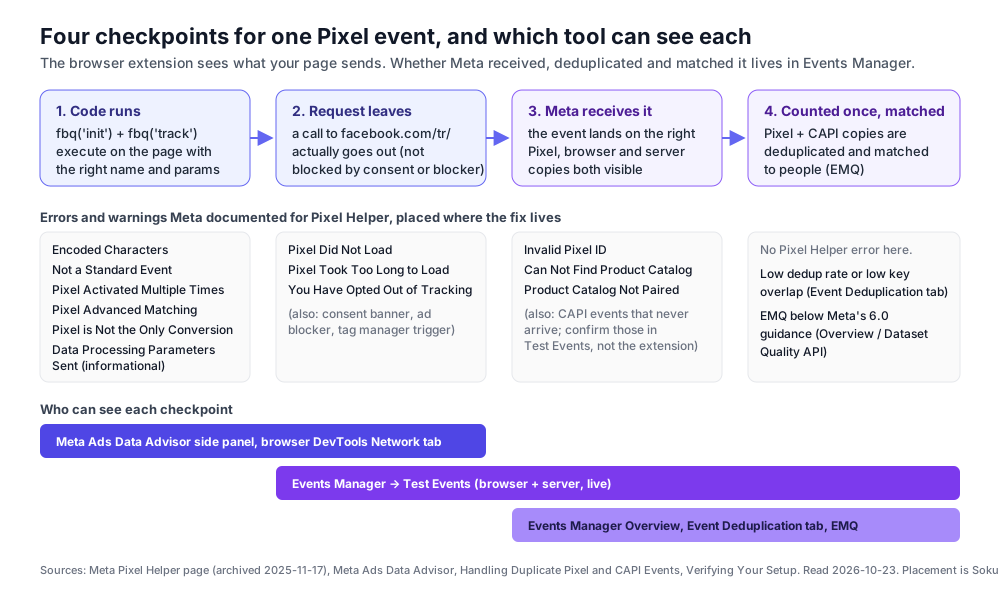
Meta's current Data Advisor page gives a short "Common Pixel setup errors" list (section 4.13). It doesn't repeat the named messages from Pixel Helper. Meta says the existing diagnostics carry over, so the names below are what Meta documented for this extension. We quote them exactly as Meta's pre-rename Pixel Helper page listed them. We can't promise the extension shows exactly these strings today, because we didn't run it. If you see wording that isn't here, look for the closest match below and check the event's status.
First, the triage view. "Meta's label" is whether Meta's own page calls it an error or a warning.
| Message | Meta's label | Where the fix lives | Can it hurt optimization or reporting? |
|---|---|---|---|
| Pixel Did Not Load | Error | Page code, consent, tag manager | Yes, nothing is sent |
| Encoded Characters | Error | CMS, tag manager | Yes, garbled parameters |
| Not a Standard Event | Warning | Event name in code | Yes, if you meant a standard event |
| Pixel Activated Multiple Times | Error | Page code, tag manager, platform apps | Yes, inflated counts |
| Invalid Pixel ID | Error | Pixel ID in code, Events Manager | Yes, events go nowhere |
| Can Not Find Product Catalog | Error | product_catalog_id, Commerce Manager | Yes, for catalog ads |
| You Have Opted Out of Tracking | Warning | Your own browser and device settings | No, but it hides problems from you |
| Product Catalog Not Paired | Warning | Commerce Manager, catalog settings | Yes, for catalog ads |
| Data Processing Parameters Sent | Informational section | Limited Data Use code | Only if the flags are wrong |
| Pixel Took Too Long to Load | Warning | Placement and page performance | Yes, quick visitors are missed |
| Pixel is Not the Only Conversion | Recommendation | Campaign and event design | Can split optimization |
| Pixel Advanced Matching | Warning | Advanced Matching values | Yes, lower match rates |
4.1 Pixel Did Not Load
What Meta says: "The Pixel Did Not Load error means that the Pixel Helper found what looks like Meta Pixel code on your site, but the actual HTTP call was never made." Meta lists two causes: "An error in the code" and a Pixel that fires on a dynamic event such as a button click, in which case "the error will disappear upon clicking on the button."
What usually causes it:
- A JavaScript error earlier on the page stops the base code from running. Open the browser console and look for a red error before the
fbqcalls. - The base code was pasted with smart quotes or a missing line, often through a CMS rich-text field.
- The event is tied to an action you haven't taken yet. This one is expected, not a bug.
- A consent manager or tag manager holds the request until a condition is met.
- An ad blocker or privacy extension blocks
connect.facebook.netorfacebook.com/tr.
How to fix it: Disable blockers, reload and check the console. In the Network tab, filter for facebook. You should see fbevents.js load and then a request to facebook.com/tr/. If the script loads but no /tr/ request follows, the problem is in your fbq calls. If the script never loads, the problem is loading (consent, tag manager or a blocked domain).
4.2 Encoded Characters
What Meta says: The error "means that the Pixel Helper found what looks to be double-encoded characters." Meta's example cause is "a tag or CMS system encoding already encoded this information," such as & becoming &. Its fix: "Make sure that characters are not being encoded twice."
What usually causes it: Product names or URLs passed into content_name or custom parameters after a template has already HTML-escaped them, and then escaped again by a tag manager variable.
How to fix it: Find where the value is built. Pass the raw string to fbq and let the Pixel handle encoding. In Google Tag Manager, check whether a custom JavaScript variable escapes a value that the data layer already escaped.
4.3 Not a Standard Event
What Meta says: It's a warning that "the Pixel Helper found an event that is not one of the Standard Events. For example, the event is named Purchased instead of Purchase."
Why it matters: Meta's Pixel reference defines a fixed list of standard events: AddPaymentInfo, AddToCart, AddToWishlist, CompleteRegistration, Contact, CustomizeProduct, Donate, FindLocation, InitiateCheckout, Lead, Purchase, Schedule, Search, StartTrial, SubmitApplication, Subscribe and ViewContent. Meta's own example of this warning is a one-letter difference (Purchased instead of Purchase), so treat any name that isn't an exact match for that list as a custom event. Custom events are allowed: Meta's conversion tracking guide says you send them with fbq('trackCustom', ...) and that "custom event names must be strings, and cannot exceed 50 characters in length." The risk is accidental custom events: you meant to send a Purchase you can optimize for, and Meta received something else.
How to fix it: If you meant a standard event, use the exact name with fbq('track', 'Purchase', {...}). If it really is custom, send it with trackCustom and ignore the warning.
4.4 Pixel Activated Multiple Times
What Meta says: The error "means that a Pixel with the same ID and event name was sent multiple times to Meta. The same event should only occur once upon page loading. If the event is sent with different custom data parameters, those parameters should be aggregated into a single Pixel event."
What usually causes it:
- The base code installed twice. Common pairs are hard-coded plus a tag manager tag, or a theme snippet plus a platform app such as a Shopify or WooCommerce integration.
- An event fired from a component that renders more than once. In React and other single-page apps, a tracking call inside a component can run again on re-render or on every route change.
- Two Pixels initialized with
fbq('track'). Meta's multiple Pixels guide explains that once you callinitfor a Pixel ID, "any subsequent call to track or trackCustom is fired for any Pixel that was previously initialized." Two Pixels plus onePurchasecall means aPurchaseon both. - One event per product line (three
AddToCartcalls for three items) instead of one event with acontentsarray.
How to fix it: Remove the duplicate install. Use fbq('trackSingle', 'PIXEL_ID', 'Purchase', {...}) when more than one Pixel lives on a page. Put multiple items into contents in a single event. Meta's current Data Advisor checklist says the same: "Ensure the Pixel code isn't duplicated on a single page."
What this error does not cover: duplicates between the Pixel and the Conversions API. A browser Purchase plus a server Purchase for the same order is a different problem with a different fix (section 7). The extension may show nothing wrong while Meta counts the order twice.
4.5 Invalid Pixel ID
What Meta says: "The sent ID for the Pixel did not match a known Pixel ID in our system. You can find your Pixel ID in the Events Manager."
What usually causes it: A typo, a placeholder left in a template ({your-pixel-id-goes-here}), a staging Pixel ID that was deleted, or a variable that resolves to an empty string or undefined. In frameworks that read the ID from an environment variable at build time, a missing variable shows up exactly like this.
How to fix it: Copy the ID from Events Manager > Data Sources. Search your codebase and tag manager for every place the ID appears. Meta's base code contains it twice, once in fbq('init') and once in the <noscript> image URL.
4.6 Can Not Find Product Catalog
What Meta says: "The Product Catalog ID which was passed in the field product_catalog_id in the Pixel fire could not be found on our system." Meta points you to Business Manager under Settings > Product Catalogs and tells you to make sure the catalog "is associated with your Pixel."
How to fix it: Check the catalog ID, confirm the catalog still exists and that the business owning the Pixel can access it, and connect the Pixel as a data source for the catalog. If you run catalog ads, our Meta catalog ads guide covers matching content_ids to feed IDs, which is the next thing to break.
4.7 You Have Opted Out of Tracking
What Meta says: It's a warning that "you have opted out of tracking from Meta and the Pixel fires detected were not logged on our servers." Meta adds that this "prevents any server side validation for the Custom Audience Pixel potentially leaving Pixel problems undiagnosed," and that because Meta respects device ad-tracking settings, "each device will have to opt back in before tracking is enabled."
What it means for you: Nothing is wrong with your site. Your own browser or device settings are keeping Meta from logging your test traffic, so you can't fully validate from this browser. Test from a different profile or device, or use Test Events (section 6), which shows whether Meta received events from a test session.
4.8 Product Catalog Not Paired
What Meta says: This warning (headed "Pixel is not paired with a product catalog" on Meta's page) "suggests that the Pixel is not paired with any product catalog. This pairing is required to specify relationship between Pixels and product catalogs." Meta gives two ways to pair them: Commerce Manager or the Product Catalog Preferences API.
How to fix it: In Commerce Manager, open the catalog's settings and connect the Pixel as an event source. If you don't run catalog or Advantage+ catalog ads, this warning has no effect on your campaigns.
4.9 Data Processing Parameters Sent
What Meta says: This section "displays any data processing parameters sent with the Limited Data Use (LDU) flag for a specific event." Meta shows the option "at the state (DPOST) and country (DPOCO) level." For example, "a dpost value of 1 represents California and a dpoco value of 1000 represents the United States. If the values are 0, Meta will geolocate the event. If you set a country, you must set a state or Meta will automatically geolocate the event."
How to read it: It's informational, not an error. Check that it matches your intent. If you meant to apply Limited Data Use only to US state-law visitors and the flags appear on every event, your consent logic is too broad. If you meant to apply it and nothing appears, it isn't wired up. Meta's data processing options page has the exact fbq('dataProcessingOptions', ...) syntax.
4.10 Pixel Took Too Long to Load
What Meta says: It's a warning that "it took a long time before the Pixel was activated. This may be due to where the Pixel is located on the webpage. It is recommended to place the Pixel code early in the web page, preferably just before the closing </head> tag." Meta also warns that "if a webpage visitor closes the webpage, clicks on a link, or navigates away before the Pixel event activates, the action will not be tracked. A significant percentage of actions and conversions can be lost due to these actions."
What usually causes it: Base code placed at the end of <body>, loaded through a tag manager that waits for window load, deferred by a performance plugin, or held back by a consent manager. Section 5 shows that our own site delays its Pixel on purpose, and what that costs.
How to fix it: Move the base code into <head> (Meta's get-started guide "highly recommend[s]" this), or fire the Pixel tag on page view rather than window load in your tag manager. If you load it late on purpose, for consent or page speed, accept the trade-off and add a server-side copy of key conversions through the Conversions API.
4.11 Pixel is Not the Only Conversion
What Meta says: "It is recommended that you use a single conversion Pixel across all ads tracking or optimization for each event to avoid inefficient optimization and tracking of these conversion events." Meta adds that if "a secondary conversion event occurs based on person's interaction with the webpage, such as a button click, then this warning can be ignored."
How to read it: Several conversion events fire on one page load, for example Lead and CompleteRegistration together on a thank-you page. Data Advisor's current list makes the same point: "Use only one conversion event per page, unless additional events are triggered by specific user actions like button clicks." Decide which event your campaigns optimize for and fire only that one on page load.
4.12 Pixel Advanced Matching
What Meta says: It's a warning that "the value sent for the advanced matching parameter is invalid or not formatted correctly." Meta's example: "sending static values from example code such as {{email}} for the em field, where the {{email}} should have been replaced by the real email address."
What usually causes it: Template placeholders that never got replaced, empty strings, a full name sent in fn, phone numbers with letters, or an email field filled before the user has typed anything.
How to fix it: Send Advanced Matching fields only when you have a real value, and follow Meta's Advanced Matching formats. Data Advisor shows the Advanced Matching data attached to each event, so check it on a real test conversion, not just on page load.
4.13 Data Advisor's current "Common Pixel setup errors"
This is the list Meta's current page uses, quoted as written:
- Duplicate Pixel code: "Ensure the Pixel code isn't duplicated on a single page."
- Strategic Pixel placement: "Only place Pixel code on pages where tracking is necessary."
- iframe and tag manager considerations: "If you use an iframe or tag manager, confirm that browser settings or privacy tools aren't blocking the Pixel."
- Correct base code placement: "Place the Pixel base code within the
<head>section of your website. Incorrect placement can lead to missed tracking." - One conversion event per page (typically): "Use only one conversion event per page, unless additional events are triggered by specific user actions like button clicks."
Most of these line up with named errors above: duplicates with 4.4, placement with 4.10 and one conversion per page with 4.11.
5. What we saw testing soku.ai's own Meta Pixel
We wanted something more useful than a description of the panel, so we tested the site we know best. On 2026-10-23 we read soku.ai's tracking code and then loaded the production site in headless Chromium with Playwright. We recorded every request to connect.facebook.net and facebook.com, five times as a visitor outside the EEA, plus two runs simulating an EEA visitor. This is the same traffic Data Advisor reads. We captured it with a network log, not the extension.
How the Pixel is wired
Our marketing site is a Next.js app. The Pixel lives in one component, components/analytics/marketing-pixels.tsx, and the event helpers live in lib/analytics/pixels.ts. Four design choices shape what any Pixel checker sees:
- It only renders after advertising consent. The component returns nothing unless the visitor has allowed marketing cookies. Visitors outside the EEA, UK and Switzerland are treated as consenting after a region lookup. Everyone else sees a banner first.
- It's never in the server-rendered HTML. Our marketing pages are edge-cached, so the code deliberately mounts the snippet in the browser after reading the consent cookie. A
curlof the soku.ai homepage returned 835,610 bytes of HTML with zero occurrences offbq,fbeventsorfacebook.com/tr. Tools that read page source, and quick "view source" audits, will report no Pixel even though one fires for consenting visitors. - The queue loads early, the library loads late. The
fbqqueue withinitandPageViewrunsafterInteractive. Thefbevents.jslibrary loads withlazyOnload, which waits until the page has loaded. - Single-page navigation sends its own PageView. On every client-side route change, our code calls
fbq('track', 'PageView').
What actually went over the wire
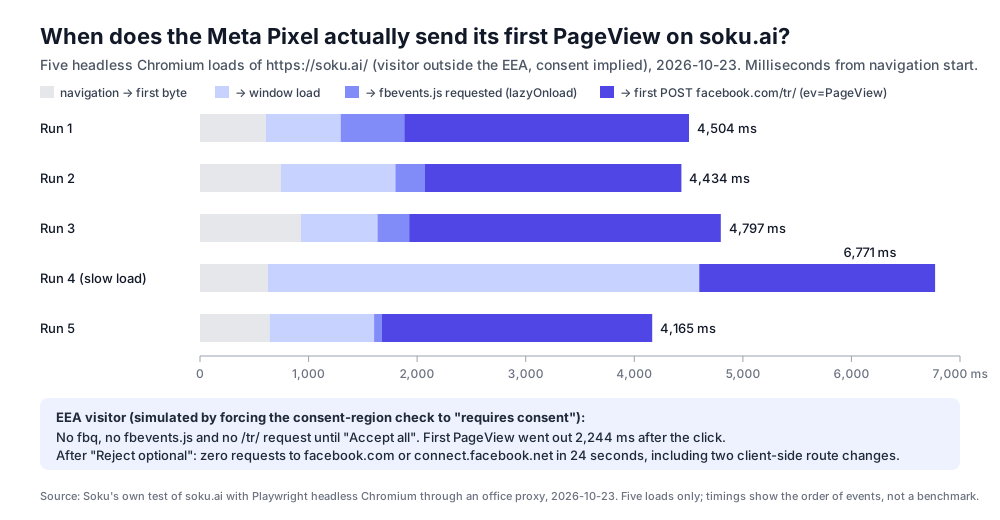
For a visitor outside the EEA, the first PageView POST to facebook.com/tr/ went out between 4,165 and 6,771 ms after navigation started across five loads. The page itself had loaded at 1.3 to 1.8 seconds in four of the five runs. Most of the gap was fbevents.js downloading after load, then the signals/config request for our Pixel ID, then the event. A visitor who leaves within about four seconds is never counted. That is exactly what Meta's "Pixel Took Too Long to Load" warning is about. If Data Advisor flagged it on our site, it would be pointing at a choice we made for page speed and consent, not a broken install. Our fix would be a server-side copy of the conversions that matter, not moving the Pixel up.
Our network ran through an office proxy, and five runs is not a benchmark. The order of events is the useful part, not the exact milliseconds.
For the simulated EEA visitor we forced our consent-region check to say consent was required. The result was what a consent setup should do:
- Before any choice,
window.fbqwasundefined. There was nofbevents.jsand no/tr/request. Data Advisor would show no badge, which Meta's docs describe as "no Meta Pixels are installed on the webpage." Here that is correct, not a bug. - After Reject optional, there were zero requests to either Meta domain for 24 seconds, across two client-side page changes.
- After Accept all,
fbevents.jsstarted loading within about 100 ms and the firstPageViewwent out 2,244 ms after the click.
Three things a Pixel checker would show that surprised us
1. Events our code never sends. When we clicked the "Pricing" link in our navigation, the Pixel sent an event called SubscribedButtonClick, with cd[buttonText]=Pricing and a cd[buttonFeatures] object containing the link's CSS classes and destination URL. Our code has no such call. This is Meta's automatic event detection, which Data Advisor labels Auto-detected. Since August 3, 2026, Meta pre-selects it when you set up a new Pixel through Data Advisor. It's harmless for a pricing link, but think about it on a page whose buttons carry sensitive labels. You can turn it off in Events Manager under Settings > Track events automatically without code.
2. One PageView per route, not two. Meta's single-page app guide says the Pixel can send PageView on history state changes by itself, and that disablePushState stops it. We also call PageView on every route change. So we checked for "Pixel Activated Multiple Times." Over two client-side navigations, we logged exactly one PageView POST per new URL (the event counter ec went 0, 2, 4, with the auto-detected clicks at 1 and 3). The network log can't tell us whether that's because fbevents.js suppressed its own history PageView or never fired one. What matters is that a checker would see one event per page. If you build a single-page app, run this same test: walk three routes with the Network tab open and count ev=PageView.
3. An event ID we didn't set. Every /tr/ request carried an eid parameter starting with ob3_plugin-set_, followed by a long hash. Our fbq calls don't pass an eventID, so fbevents.js filled one in. Meta's deduplication doc says the browser eventID must match the server's event_id. Our server never sees this generated value, so it can't be used for deduplication. That doesn't matter today, because soku.ai sends no server-side copies of these events. If we add the Conversions API for Lead, we'll need to pass our own eventID as the fourth argument. We found no Meta documentation for the auto-generated value and wouldn't rely on it.
One small thing we found in our own code: the <noscript> fallback image sits inside a component that only renders in the browser after consent. A visitor without JavaScript never receives it. It's harmless but does nothing, and we've noted it for cleanup.
6. When to use Events Manager instead of the extension
Meta's Data Advisor page has a section titled "When to use Events Manager instead." It says custom conversions and some advanced event types "may not appear in Data Advisor but can still be sent." It says button-click events "may not be detected depending on your website setup," and that user-triggered events "may not be reliably detected unless they reload the page or trigger a direct Pixel call." For anything deeper, it sends you to the Test Events tool.
| Question you're asking | Best tool | Why |
|---|---|---|
| Is the Pixel on this page and is it the right ID? | Data Advisor, or the browser Network tab | It reads requests in real time |
Did this button click send AddToCart with the right value? | Data Advisor; confirm in Test Events | Meta says click events may not always be detected by the extension |
| Did Meta actually receive my server (CAPI) events? | Events Manager > Test Events with test_event_code | The extension sees your browser, not your server |
| Are browser and server copies deduplicated? | Event details > Event Deduplication tab | Shows the dedup rate and key overlap per source |
| Are my events matched to people well enough? | Overview > Event Match Quality, or the Dataset Quality API | EMQ isn't shown in the extension |
| How delayed are my server events? | Event details > Event Freshness tab | Shows average delay from Real Time to Weekly |
Test Events, step by step
Meta's Conversions API Using the API page describes the tool: go to Events Manager > Data Sources > your Pixel > Test Events. The tool generates a test ID, and you send it as a top-level test_event_code in your Conversions API request. Server events then "appear in the Test Events window once the request is sent." For the browser side, Meta's Data Advisor glossary describes the Test events tool as "a Meta tool in Events Manager for testing Pixel events, especially button clicks and custom conversions," which are the cases the extension may miss.
Two cautions from Meta's docs:
- Test events aren't sandboxed. Meta says: "Events sent with
test_event_codeare not dropped. They flow into Events Manager and are used for targeting and ads measurement purposes." Some third-party guides say test events don't affect reporting. Meta's own page says they do. - Remove the code in production. "The
test_event_codefield should be used only for testing. You need to remove it when sending your production payload."
Diagnostics after the fact
Meta's Verifying Your Setup page says you "should be able to verify them within 20 minutes after they were sent" in Events Manager. The Overview page shows "the number of events we received before they are deduplicated, discarded due to consent controls and other policies, or processed," and a Connection Method column shows whether each event came from the browser or the server. For Event Match Quality, Meta says that "where possible, we typically recommend that you aim for an Event Match Quality score of 6.0 or higher." Higher targets you'll see online are practitioner targets, not Meta's guidance.
7. Pixel and Conversions API deduplication: what the extension can't tell you
If you send the same conversion from both the browser Pixel and the Conversions API (Meta calls this a "redundant setup" and recommends it), you have to deduplicate. A clean Data Advisor panel tells you nothing about this. It sees one browser event and has no view of the server copy.
The rules, from Meta's Handling Duplicate Pixel and Conversions API Events page:
- Recommended method: event ID plus event name. "A Meta Pixel's
eventIDmust match the Conversion API'sevent_id," and the Pixel's event name must matchevent_name. The Pixel'seventID"is the fourth argument in thefbqtrack call":fbq('track', 'Purchase', {value: 12, currency: 'USD'}, {eventID: 'EVENT_ID'});. WithtrackSingleit's the same idea with the Pixel ID first. For an image tag it's theeidparameter. - Same Pixel, within 48 hours. If Meta finds the same key "sent to the same Pixel ID within 48 hours," it discards the later events. Events are only deduplicated "if they are received within 48 hours of when we receive the first event with a given
event_id." - Which copy wins. "If server and browser events do not differ meaningfully in their content, we generally prefer the event that is received first."
- Fallback method: fbp or external_id. If you send
event_nameplusfbpand/orexternal_idconsistently from both sides, Meta compares them. But this "generally... only works for deduplicating events sent first from the browser and then through the server," and it doesn't deduplicate repeats from a single source.
The difference from "Pixel Activated Multiple Times" matters. That error is about one source (the browser) sending the same event twice. Pixel-to-CAPI duplicates are about two sources each sending it once with no shared key. You need different tools to catch each one.
What to check in the browser before you look at Events Manager:
- In Data Advisor or the Network tab, open your
Purchase(orLead) event and find the event ID. In the raw request it's theeidparameter. - Confirm it's an ID you set, such as the order ID, and not a library-generated value like the
ob3_plugin-set_...IDs we saw on soku.ai. - Confirm your server sends the same string as
event_idwith the sameevent_name, to the same Pixel ID. - Then open Event Details > Event Deduplication in Events Manager. Meta says "a warning will appear when your deduplication rate is too low." Low Overlap means one side is sending non-unique keys or the key only appears on one side.
For the full Conversions API side (parameters, hashing and match keys), our server-side tracking piece explains why the server copy matters for automated bidding.
8. A 15-minute Pixel QA routine
This is the routine we'd hand a new media buyer. It uses Data Advisor where it's strong and Events Manager where it isn't.
| Step | Where | Pass condition |
|---|---|---|
| 1. Clean browser | Chrome or Edge profile without ad blockers | No privacy extensions active on your site |
| 2. Pixel present | Data Advisor on the homepage | Exactly the Pixel IDs you expect; no unknown IDs |
| 3. Consent behavior | Reject, then accept, on an EEA test (VPN or banner reset) | Nothing fires before consent; PageView fires after |
| 4. PageView per page | Walk 3 to 4 pages, including client-side routes | One PageView per page; no "Pixel Activated Multiple Times" |
| 5. Key events | Do the real actions: view product, add to cart, start checkout, submit lead | Each event fires once, with a standard name and correct parameters |
| 6. Purchase or Lead | Complete one real or zero-value test conversion | value and currency present on Purchase; your own event ID attached |
| 7. Auto-detected events | Data Advisor event list | You know which events are auto-detected and you're comfortable with what they send |
| 8. Server events | Events Manager > Test Events with a test_event_code | Server copies of key events arrive with matching names |
| 9. Deduplication | Event Details > Event Deduplication (after real traffic) | No low-dedup warning; healthy overlap |
| 10. Match quality | Overview > Event Match Quality | At or above Meta's 6.0 guidance where possible |
Steps 1 to 7 take about ten minutes in the browser. Steps 8 to 10 need Events Manager access and, for 9 and 10, real traffic.
9. Where Soku fits, and what it can't do
Soku is an AI agent that connects to ad accounts. Here is exactly what it does with Meta Pixels today, checked against our code on 2026-10-23.
What Soku can do on a connected Meta ad account:
- List Pixels with their last fire time. The
list_pixelsaction readsid,name,codeandlast_fired_timefrom the account'sadspixelsedge (packages/ads_ops/meta/pixels.py). A Pixel that hasn't fired in days is often the first clue that a site release broke tracking. - Read event stats and approximate match rate. The
get_dataset_qualityaction readsevent_stats,match_rate_approxandmatched_entriesfor one Pixel or all Pixels on the account. Before reading a single Pixel, it checks that the Pixel is attached to that ad account, including shared Pixels (packages/ads_ops/meta/diagnostics.py). Both actions are read-only. - Create or rename a Pixel.
create_pixelandupdate_pixelare the only Pixel writes. Renaming checks ownership first, and the Graph API has no Pixel delete. - Send one test Conversions API event.
send_conversion_eventrejects unhashed personal data. It requiresevent_source_urlandclient_user_agentfor website events and supports atest_event_codeso the event shows up in Test Events. It's in the tier of actions that always need a human to approve (apps/api/routers/agent_api/data/ads_ops/_policy.py).
What Soku cannot do:
- It can't run Meta Ads Data Advisor or read its panel.
- It can't load your website and watch the Pixel fire. The browser test in section 5 was done by hand with Playwright, not by a Soku feature.
- It can't read the Test Events window, the Event Deduplication tab or the Event Match Quality score shown in Events Manager.
match_rate_approxis a different, coarser field. - It can't edit your site, your tag manager or your platform app to fix an error.
A note on PR #6059. Our recent change, "verify a Site against its linked Pixel's browser signal," is about Soku's own tracking Pixel for ChatGPT Ads, not the Meta Pixel. It fixed a bug where Soku's install check could stay pending even though events were arriving. The same Soku Pixel install screen has a per-event checklist (packages/services/pixel_context/event_checklist.py). It treats Meta's ViewContent and GA4's view_item as the same row, so a site that uses Meta's naming isn't reported as missing an event. Events that don't match a standard name land in a custom bucket. That's the same lesson as "Not a Standard Event": if a name doesn't match, the event isn't usable for optimization.
If you also run Meta campaigns through an AI agent, our guide to connecting Claude to Meta Ads through MCP covers what such agents can read and change, and Meta ads account structure covers where conversion events plug into campaign setup.
Summary
- Meta Pixel Helper is now Meta Ads Data Advisor. It runs on Chrome and Edge, adds setup automation and monitoring, and asks for much broader permissions. Meta says the old diagnostics still work.
- Read the panel by status: Active, Warning, Inactive, Error, Auto-detected. A green Pixel can still have events with warnings.
- The named messages Meta documented are Pixel Did Not Load, Encoded Characters, Not a Standard Event, Pixel Activated Multiple Times, Invalid Pixel ID, Can Not Find Product Catalog, You Have Opted Out of Tracking, Product Catalog Not Paired, Data Processing Parameters Sent, Pixel Took Too Long to Load, Pixel is Not the Only Conversion and Pixel Advanced Matching.
- A consent-gated Pixel correctly shows nothing before consent. On our own site the first PageView went out 4 to 7 seconds after navigation, which is the trade-off "Pixel Took Too Long to Load" warns about.
- The extension shows what your browser sends. Use Test Events for server events, the Event Deduplication tab for Pixel and CAPI overlap, and EMQ for matching.