 Soku AI
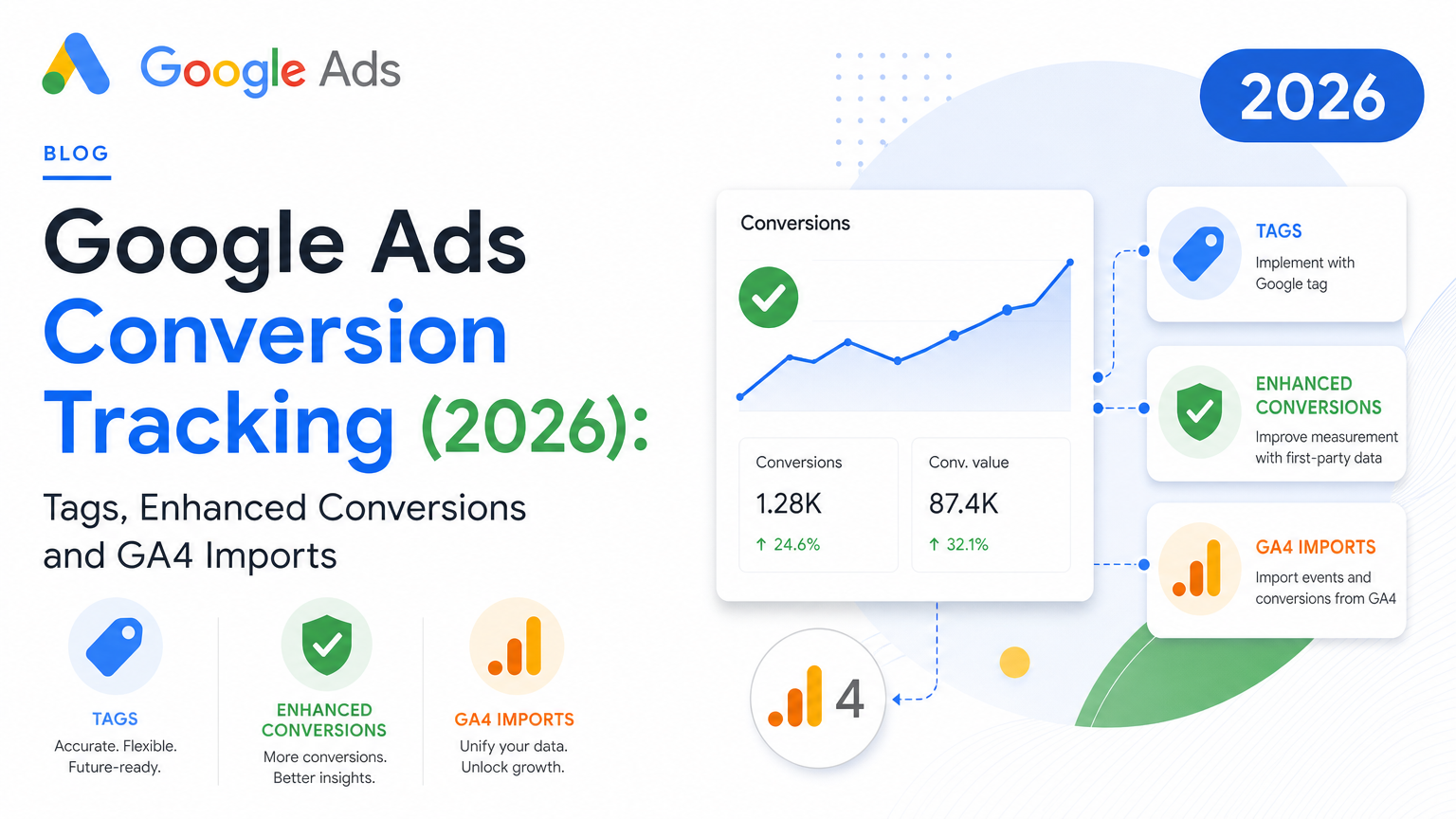
Most Google Ads conversion tracking guides end the moment a tag fires. That's the easy part. What decides whether Smart Bidding gets a clean signal is everything after it: which actions are Primary, which goals each campaign actually optimizes toward, whether a GA4 import is quietly counting the same purchase a second time, and whether your counting and windows match how your business really sells. Most broken accounts don't have a missing tag. They have a tag that works, measuring the wrong thing.
On 2026-10-23 we read Google's current documentation end to end. On the Google Ads Help side: conversion tracking, Google Analytics imports, primary and secondary actions, conversion goals, counting, conversion windows, attribution models, transaction IDs, enhanced conversions for web and for leads, offline imports, consent mode and the new tracking status labels. On the developer side: the Google Ads API v26 ConversionAction field reference and the conversion goals guide. Every rule below links to the page it comes from.
Last verified: 2026-10-23. Google changed three things in 2026 that make older guides wrong. Tracking statuses were renamed. Enhanced conversions for web and leads are being merged into a single switch. And offline and leads uploads moved from the Google Ads API to the Data Manager API on June 15, 2026. If a guide you're reading still says "Inactive" or "No recent conversions", or tells you to call UploadClickConversions, it predates these changes.
What we built and what we didn't. We turned Google's rules into three original references: a four-question test for whether a conversion action trains bidding, a chart of every documented window and waiting period, and a 16-point audit checklist. Each check in that list is marked by whether Soku reads it from a connected account or whether you have to verify it by hand. We checked those marks against Soku's code, not our marketing. We did not run a before-and-after test on a live account, and this post contains no "recovered conversions" numbers.
This post covers the Google Ads side. For the server pipeline behind offline and leads uploads, see our Data Manager API setup guide for Google Ads and GA4. For why first-party server signal now matters to automated bidding, read Server-Side Tracking Is Now an AI Bidding Input. If you want the whole account audit, not just measurement, our 50-point Google Ads audit checklist covers it.
1. How Google Ads conversion tracking works in 2026
Google's conversion tracking overview defines a conversion as a customer action you've decided is valuable, such as a purchase, sign-up or phone call. "You choose what you identify as valuable." Those conversions do two jobs: they report how your ads perform, and they feed the Smart Bidding strategies that set your bids.
Every conversion lives in a conversion action, the object you create under Goals > Summary. A conversion action has a type, a category (Purchase, Submit lead form, Page view and so on), a counting rule, windows, an attribution model and a Primary or Secondary flag. Google groups actions into conversion goals by category, and campaigns optimize toward goals, not toward individual actions. That indirection is why it's so easy to get wrong.
The four conversion sources
Google's overview lists four places conversions come from:
| Source | What it records | How the data reaches Google Ads |
|---|---|---|
| Website | Purchases, sign-ups and other actions on your site after an ad interaction | Google tag (directly or via Google Tag Manager), or events imported from Google Analytics |
| App | Installs and in-app actions on Android or iOS | An app measurement source linked to Google Ads |
| Phone calls | Calls from ads, calls to a number on your website, taps on a number on your mobile site | Call conversion actions set up in Google Ads |
| Offline | Sales or qualified leads that happen in your CRM or in store | File or API import, now through Google Ads Data Manager or the Data Manager API |
The two website data sources
For website conversions you choose between two data sources, and Google's overview frames them precisely. Google Analytics is "the most efficient choice" if you already track website events there. The Google tag is "a dedicated tracking signal optimized specifically for Google Ads bidding." Google recommends the tag if you don't use Analytics or if you need Ads-specific features such as enhanced conversions. You can use both, with different signals for different conversion actions.
That "both" is where most duplicate counting starts, so section 8 covers it in detail.
The Google tag
The Google tag (gtag.js) is "a single tag you can add to your website." It works across Google products, and you can "connect the tag ID to multiple destinations," so one tag can serve Google Ads and GA4 together. When a user clicks your ad and later completes the action, the tag's cookie lets Google Ads record the conversion against that click.
Google's overview also warns that a new tag can show as unverified until Google Ads records its first conversion or a successful test event, and that you can check it with Google Tag Assistant.
2. Pick a data source: Google tag, GA4 import or offline import
Here's how the three main paths compare, drawn from Google's help pages on conversion tracking, GA4 imports, GA4-based conversions and offline imports:
| Google tag (Google Ads conversion action) | GA4 key event imported into Google Ads | Offline / enhanced conversions for leads | |
|---|---|---|---|
| Where the event is defined | In Google Ads, fired by gtag.js or a GTM tag | In GA4 as a key event, then imported | In your CRM, uploaded later |
| Enhanced conversions | Yes (web) | Not through the import itself | Yes (leads) |
| View-through conversions | Yes | No. Google: "You won't see view-through conversions if you are importing conversions from Analytics" | Not applicable |
| Conversion date | The date of the ad click | GA4 attributes the conversion to the day it happened | The conversion time you upload |
| Reporting delay | 24 to 48 hours after a tag change before you should judge it | Up to 24 hours before data is available | Depends on your upload schedule |
| Default Primary or Secondary | Set when you create it | Actions created from the GA4 interface are Secondary | Set when you create the action |
| Settings you can edit in Google Ads | All | Window and counting may not be editable. GA4 settings are read-only for Primary actions | All |
| Best for | Bidding on purchases and leads on your own site | Accounts that already run GA4 well and want one event definition | Lead gen and long sales cycles where the real outcome happens offline |
Soku's read (editorial): for the one or two events that should train bidding, a Google tag action with enhanced conversions is the stronger signal. It supports enhanced conversions and view-through, and it dates conversions by click, which is what bidding learns from. GA4 imports are a good fit for secondary observation, or for accounts where the GA4 event is already well defined and the tag isn't. Don't make both Primary for the same event.
3. Set up a website conversion with the Google tag
Google's overview breaks setup into three steps: choose data sources, group your conversions into actions marked Primary or Secondary, then add the tag and check its status. In practice, for a purchase or lead:
- In Google Ads, go to Goals > Summary and create a conversion action with the Website source. Pick the category that matches the business outcome (Purchase, Submit lead form, Book appointment). The category decides which goal the action lands in.
- Set the value. For purchases, use a dynamic value from your order data and the currency. For leads with no price, set a default value that reflects what a lead is worth to you, so value-based bidding has something to compare.
- Set counting (section 4), the click-through window and the attribution model before you go live. Changing the window later only applies "to all conversions going forward."
- Install the tag. Either add the Google tag to every page and the event snippet on the conversion page, or create a Google Ads Conversion Tracking tag in Google Tag Manager with the Conversion ID and Conversion Label and fire it on the confirmation event.
- For purchases, pass a dynamic
transaction_idin the event (see below). - Turn on enhanced conversions for the action (section 6).
- Test a real conversion with Tag Assistant, then wait 24 to 48 hours before judging the status.
A minimal purchase event on a confirmation page looks like this. The send_to value is your conversion ID and label from Google Ads.
<script>
  gtag('event', 'conversion', {
    'send_to': 'AW-123456789/AbC-D_efG-h12_34-567',
    'value': 129.00,
    'currency': 'USD',
    'transaction_id': 'ORDER-100482'
  });
</script>
Transaction IDs are the cheapest dedup you'll ever add
Google's transaction ID page says that "If there are 2 conversions for the same conversion action with the same transaction ID," Google Ads treats the second as a duplicate. "You'll get an error message, and the duplicate conversion won't be counted." The rules:
- Up to 64 characters. Numbers, letters, dashes and spaces are allowed.
- One unique ID per order. "Using the same ID for multiple orders will result in undercounting," so never hardcode a placeholder.
- No information that identifies the customer.
- It deduplicates within one conversion action only. It won't stop a second action from counting the same order.
- It does not resolve duplicate view-through conversions.
That fourth point matters. A transaction ID protects you from a reloaded thank-you page. It does nothing if a GA4-imported purchase and a Google tag purchase are both Primary.
Read the new tracking status labels
In 2026 Google renamed the statuses in the conversion actions table. Google's current tracking status troubleshooter lists five:
| Status | What Google says it means | What to do |
|---|---|---|
| Active (green) | Tracking is working as intended | Nothing, but still check the count against your backend |
| Needs attention (yellow) | There are action items, but conversions are still recording | Hover for details. Often enhanced conversions or tag coverage |
| Misconfigured | Recording "has stopped entirely due to a setup error or a broken tag" | Fix immediately. Any campaign bidding on this action is optimizing blind |
| Awaiting conversions | No conversions recorded in the last 7 days, usually because the action is under 48 hours old, campaigns are paused or traffic is low | Wait, or check that ads are actually serving |
| Removed | The action was deleted or archived and no longer tracks data | Make sure no campaign or custom goal still depends on it |
Search Engine Roundtable reported the change on July 13, 2026: these labels replace Inactive, No recent conversions and Other. Some Google pages, including the conversions summary help page, still use the old names. The advice on that page still holds: check the tag and the Conversion Linker with Tag Assistant, and "If tags were recently implemented or changed, allow 24-48 hours for data to appear."
4. The settings that decide what you count
A tag records events. The settings on the conversion action decide how those events become conversions.
Counting: Every or One
Google's counting options page has two choices:
- Every conversion. "Google Ads counts every conversion (per tracked conversion action) that happens after an ad interaction." Google recommends it for sales, because "every sale likely adds value for your business." Its example: a travel site books three hotels and two rental cars from one click, which counts as five conversions.
- One conversion. "Google Ads counts only one conversion per ad click." Google recommends it for leads, where what matters is "whether or not a certain kind of lead was generated." Its example: one person submits three auto-insurance forms and two home-insurance forms, which counts as two conversions, one per action.
You can mix them per action. The rule of thumb that follows from Google's examples: purchases Every, leads One. A lead form left on Every is one of the most common reasons lead counts in Google Ads run ahead of the CRM.
In the API this is conversion_action.counting_type, with values MANY_PER_CLICK (Every) and ONE_PER_CLICK (One).
Conversion windows
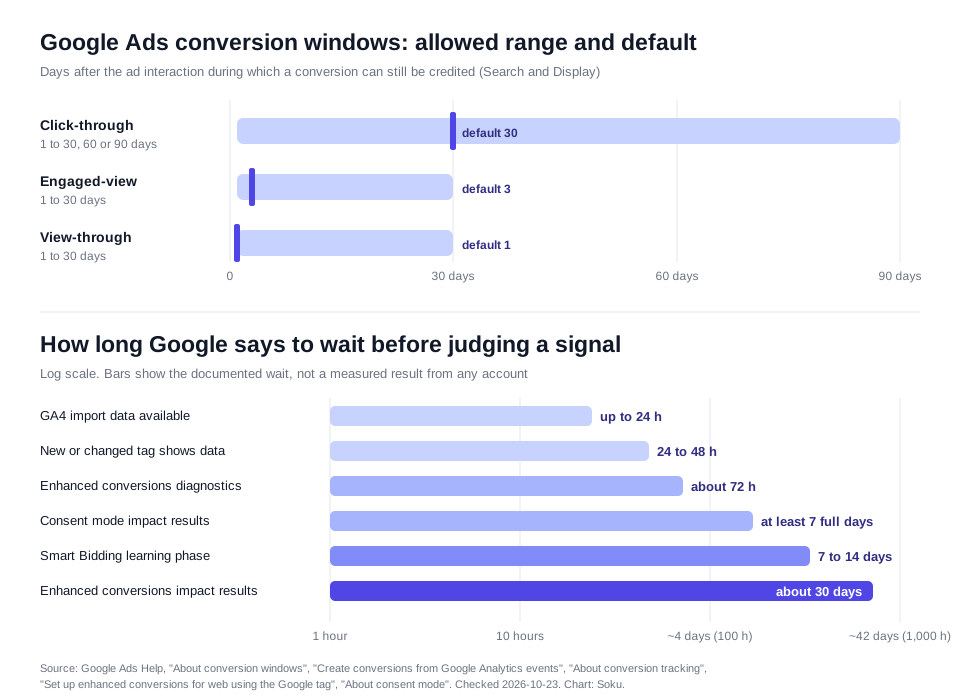
Google's conversion windows page defines a window as the period after an ad interaction "during which a conversion" can be recorded. The documented ranges:
- Click-through: default 30 days. "You can set it anywhere from 1 to 30, 60, or 90 days for Search and Display campaigns."
- Engaged-view: default 3 days, adjustable from 1 to 30 days.
- View-through: default 1 day, adjustable from 1 to 30 days.
Changes are not retroactive: "any changes apply to all conversions going forward." If your sales cycle is 45 days and your window is 30, conversions on days 31 to 45 simply don't exist in Google Ads, and bidding never learns from them.
The same chart below lays out the waiting periods Google documents across these features. They're useful when you're tempted to judge a change after a day.
Attribution model
Google's attribution models page now lists two models: data-driven, which "distributes credit for the conversion based on your past data for this conversion action," and last click. "The first click, linear, time decay, and position-based attribution models are no longer supported by Google," and actions that used them were moved to data-driven. If an audit template still asks you to pick between six models, it's out of date.
Value
The value is what value-based bidding optimizes. A Purchase action with no value, or a flat default value on every order, makes Target ROAS treat a $20 order like a $2,000 one. For leads, a default value is fine, as long as different lead types that are worth different amounts don't share it.
5. Primary, secondary, goals: what actually trains bidding
This is the part of Google Ads conversion tracking that most guides get wrong, because the rule changes depending on the campaign's goal setup.
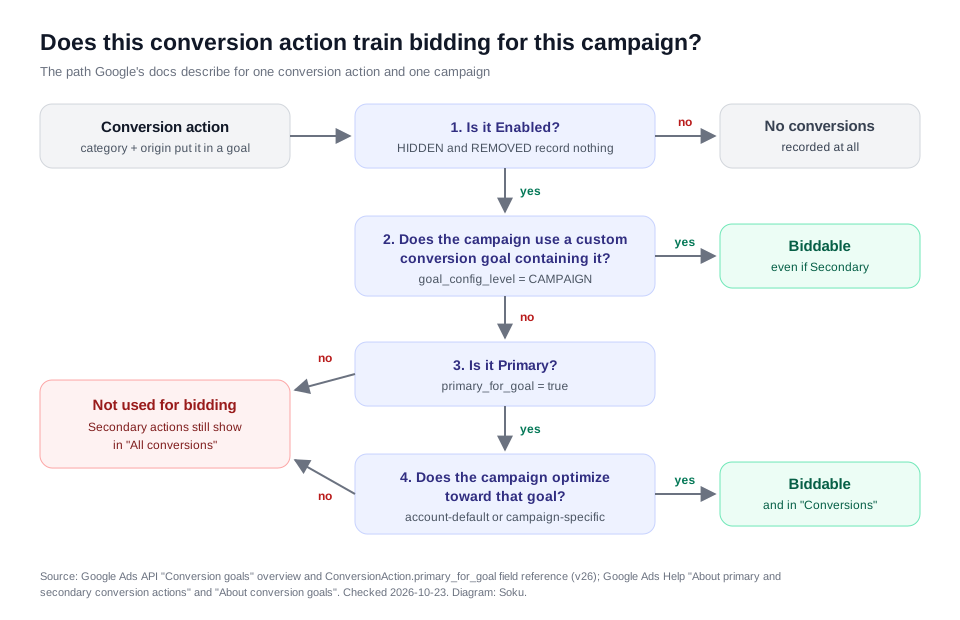
Google's primary and secondary page says Primary actions are "reported in the 'Conversions' column in your reports and used for bidding," provided the goal they belong to is used for bidding. Secondary actions are "for observation only." They show up in All conversions and don't affect bidding, with one exception: a Secondary action inside a custom goal is used for bidding.
The conversion goals page adds the goal layer. "Conversion actions that you add are automatically grouped into conversion goals based on their conversion category type." New campaigns use all account-default goals by default. A campaign can switch to campaign-specific goals, which "can include any custom goals." An action is used for bidding only if it's Primary and the campaign optimizes toward the goal that contains it.
The API docs make the mechanics exact. The conversion goals guide says goals are grouped by unique combinations of category and origin. Customer goals set the account default, campaign goals override them, and custom goals group arbitrary actions. Setting a campaign's goals flips ConversionGoalCampaignConfig.goal_config_level to CAMPAIGN, after which account-level goal changes no longer apply to it. The v26 primary_for_goal field reference is blunt: if it's false, the action "is non-biddable for all campaigns regardless of their customer conversion goal or campaign conversion goal. However, custom conversion goals do not respect primary_for_goal." It defaults to true when not set.
Status matters too. Per the API's ConversionActionStatus enum, an ENABLED action records conversions, while HIDDEN and REMOVED actions don't record any.
Put together, there are four questions for any one action and one campaign:
Three consequences that trip up real accounts:
- Switching an action to Secondary doesn't stop a custom-goal campaign from bidding on it. If you demote a micro-conversion and one campaign keeps optimizing toward it, look for a custom goal.
- A campaign on campaign-specific goals ignores account-level changes. You can fix the account defaults perfectly and still have three campaigns bidding on page views, because their
goal_config_levelisCAMPAIGN. - The Conversions column isn't the same as "what bidding sees" for every campaign. Secondary actions in a custom goal train bidding but don't sit in Conversions for the rest of the account. Read the campaign's goal settings, not just the column.
There's also an older API field, include_in_conversions_metric, documented as "Whether this conversion action should be included in the 'conversions' metric." It overlaps with primary_for_goal, but the two aren't the same thing. If you script audits against the API, use primary_for_goal plus the goal configuration as the source of truth.
6. Enhanced conversions for web
Enhanced conversions for web "allows you to send hashed first-party, user-provided data from your website when a user converts." Google hashes that data with "a secure one-way hashing algorithm called SHA256" and matches it "to Google accounts, which were signed-in to when they engaged with one of your ads." In practice that recovers conversions cookies miss, such as a click on one device and a purchase on another.
Normalization before hashing
If you hash the data yourself, Google's page lists the normalization:
- Remove leading and trailing whitespace.
- Lowercase the text.
- Format phone numbers in E.164 (for example
+14155550123). - Remove periods before the domain in gmail.com and googlemail.com addresses.
- Hash with SHA-256 and send the hex digest.
Setup options
Google's Google tag setup page covers the tag method and points to separate guides for Google Tag Manager and the Google Ads API. Within the Google tag there are three ways to capture the data:
| Method | How it works | Trade-off |
|---|---|---|
| Automatic | "Inspects the page for strings matching configured data types" | Least effort, least control. Can miss data on custom checkouts |
| CSS selectors or JavaScript variables | You point the tag at the elements or variables that hold the email, phone or address | More reliable, but it breaks when the page markup changes |
| Code snippet | You pass the user-provided data in code on the conversion event | Most accurate. Google says snippet data takes priority when methods are combined |
The same page lists the requirements:
- You need to know the exact URL where the conversion tag fires and what triggers it.
- You must "Review and agree to customer data terms to continue." Data collection doesn't start until you accept the terms.
- You need at least one of: email ("preferred"), a full name and address (first name, last name, postal code and country), or a phone number together with an email or a full name and address.
- If you set up conversions by URL, you can only use automatic or CSS/JavaScript methods, not the code snippet.
On timing, tag diagnostics are available "About 72 hours after implementing enhanced conversions," and impact results appear in the conversion action table about 30 days after a successful implementation.
The 2026 single switch
Google's enhanced conversions settings update says that from April 2026, "Google Ads will simultaneously accept user-provided data from website tags, Data Manager, and API connections." From June 2026, "Enhanced conversions for web and leads will be combined into a single feature with a simple on/off switch," and you'll no longer pick a method in the account. Existing users who accepted the customer data terms move over automatically. You can still opt out per conversion action. When we checked on 2026-10-23, the page still described the merge in future tense, so the screens in your account may be on either version.
7. Enhanced conversions for leads and offline imports
For lead gen, the conversion that matters (a qualified lead or a closed deal) happens in your CRM, days or weeks after the form. Google's enhanced conversions for leads page calls it "an upgraded version of offline conversion import that uses user-provided data, such as email addresses." It works in two halves:
- On the form, the Google tag (directly on the page or through Tag Manager, not inside a third-party iframe) captures hashed user-provided data.
- When the lead converts, you upload the conversion with the same hashed data, through Google Ads Data Manager or the API. Google also lists Zapier.
Google says to keep including GCLIDs when you have them. They're required if you aren't collecting user-provided data with a tag. It also says the hashed-data approach enables engaged-view and cross-device conversions that standard GCLID import doesn't.
The 2026 cutoff. Google's offline conversion imports page says that starting June 15, 2026, "offline conversions import and enhanced conversions for leads uploads will be migrated to the Data Manager API" and blocked in the Google Ads API. Per the leads page, developer tokens that made no such requests from January through June 2026 aren't allowlisted for legacy access. PPC Land's coverage of the May 2026 developer blog post gives a slightly different qualifying window, so check the developer blog if you're relying on legacy access. Google also recommends that advertisers who don't yet import offline conversions start with enhanced conversions for leads.
We won't repeat the pipeline here. Event inventory, identity normalization, routing, dedup keys and monitoring are covered step by step in the Data Manager API setup guide. If you're choosing between APIs, see Data Manager API vs Measurement Protocol vs Google Ads API.
8. GA4 imports without double counting
GA4 imports are convenient: you define a key event once and Google Ads uses it. But the two systems count differently, and Google's docs list the differences plainly.
Requirements
From Create conversions from Google Analytics events:
- Link the Google Ads account to the GA4 property.
- Turn on auto-tagging in Google Ads, and keep the GCLID intact on landing pages. It's "crucial for attributing conversions back to Google Ads."
- Mark the event as a key event in GA4 first.
- Have at least the Marketer role in GA4 and admin access in Google Ads.
- Import from Google Ads (Goals > Summary > Create conversion action > Google Analytics property) or from GA4 (Advertising > Conversion management).
Allow up to 24 hours for data to appear, and expect no history from before the import. For cross-device conversions in Google Ads, Google says "you need to turn on Google signals for your Google Analytics property."
Why the numbers won't match
| Difference | Google Ads tag | GA4 import |
|---|---|---|
| Conversion date | Click date | The day the conversion happened |
| Cookie lifetime | Google Ads cookies expire after 90 days | Analytics cookies last up to 2 years |
| View-through | Supported | Not available for imported conversions |
| Channel credit | Google Ads sources only | Paid channels only, or paid and organic. Since June 2023, new links default to "Google Paid Channels" |
| Arrival | 24 to 48 hours after a tag change | Up to 24 hours after the event |
Different numbers aren't a bug. Two tools with different dates, windows and credit rules are supposed to disagree. The problem is double counting inside Google Ads.
How double counting happens, and how Google guards against it
Google's GA4 conversions page says imported actions "are set to 'secondary' conversion actions to prevent counting the same event twice for bidding," and actions created from the GA4 interface are Secondary by default. The guardrail fails the moment someone flips the import to Primary while the Google tag action for the same purchase is also Primary. Reported conversions roughly double, CPA looks half as high as it is, and Smart Bidding optimizes toward the inflated number.
The fix is a rule, not a setting: one business event, one Primary action, per goal. If the Google tag action is your bidding signal, keep the GA4 import Secondary for comparison. If you've decided GA4 is the source of truth, make the import Primary and demote or remove the tag action.
9. Consent mode
Google's consent mode page says it "lets you communicate your users' cookie or app identifier consent status to Google." It doesn't include a banner. It works with your consent management platform and adjusts how Google tags behave.
- Basic consent mode. Tags stay blocked until the visitor responds. If they decline, nothing reaches Google, not even the consent state. Conversion modeling uses "a general model."
- Advanced consent mode. Tags load immediately. When consent is denied they send cookieless pings, and full measurement starts only after consent is granted. Modeling uses "an advertiser-specific model."
Consent mode v2 added two parameters. Per Google's Tag Manager help, ad_user_data "Sets consent for sending user data to Google for advertising purposes," and ad_personalization "Sets consent for personalized advertising." They sit alongside ad_storage, which controls Google Ads cookies, and analytics_storage. In March 2024, Google did a one-time mapping of ad_storage to ad_user_data for EEA accounts still on v1.
For the EEA, Google's consent mode EEA update says advertisers "must adhere to the EU UCP to use ad personalization and for measurement." To keep using tags for measurement, personalization and remarketing, you have to collect consent from EEA users and pass the signals to Google. Google also warns that if your tags don't load until the banner is answered, "Google won't be able to verify user consent choices and this may lead to loss in data." Consent mode impact results need the setup live for "at least 7 full days."
Enhanced conversions and consent are linked. User-provided data is still user data, so ad_user_data has to reflect what the visitor actually agreed to.
10. The audit checklist: what Soku reads and what you check by hand
This is the checklist we'd run on any Google Ads account before trusting its CPA. For each check, the third column says whether Soku can see it from a connected account. "Reads" means Soku syncs that exact field from the Google Ads API into its conversion inventory, and its agent can answer questions from it. It does not mean Soku runs the check automatically or alerts you. You ask, the agent reads the fields and answers. "Manual" means no Soku code path reads it, so verify it yourself.
We built this column from Soku's code on 2026-10-23. The conversion inventory query, the custom-goal sync and the GA4 cross-check are named in the "How Soku fits" section below.
| # | Check | What bad looks like | Soku | How to verify |
|---|---|---|---|---|
| 1 | Every biddable action is Enabled | A Primary purchase action is HIDDEN or REMOVED, or a removed action is still in a custom goal | Reads status | Goals > Summary, include removed actions in the view |
| 2 | One Primary action per business event | Tag purchase and GA4-imported purchase both Primary | Reads primary_for_goal, type and category, so it can list Primary actions of the same category from different sources | Ask which Primary actions share a category, then confirm in Goals > Summary |
| 3 | No micro-conversions in Primary | Page view, add-to-cart or engaged session sitting in Primary next to Purchase | Reads primary_for_goal and category | Goals > Summary, Primary column |
| 4 | Custom goals don't resurrect demoted actions | A Secondary micro-conversion inside a custom goal a campaign uses | Reads custom goals, their actions and which campaigns use them (goal_config_level = CAMPAIGN) | Campaign > Settings > Goals |
| 5 | Campaign-specific goals are intentional | Campaigns on CAMPAIGN level that nobody remembers setting | Partial. Reads campaigns that use a custom goal. Doesn't read account-default (customer) goals, the biddable flag or non-custom campaign goals | Goals > Summary > campaign goal settings |
| 6 | Counting matches the business | Lead form on Every, or purchases on One | Reads counting_type | Action > Edit settings > Count |
| 7 | Click-through window covers the sales cycle | 30-day window on a 60-day B2B cycle | Reads click_through_lookback_window_days | Action settings, compared with CRM time-to-close |
| 8 | View-through window is deliberate | View-through left at a long custom value that inflates credit for display | Reads view_through_lookback_window_days. Doesn't read the engaged-view window | Action settings |
| 9 | Attribution model is current | An action still configured with a retired model in an old template | Reads attribution_model_settings.attribution_model | Action > Edit settings > Attribution |
| 10 | Values are real | Purchase with no value, or one flat default across order sizes | Reads value_settings.default_value. Doesn't read whether "always use default value" is on | Compare conversion value per conversion with real order values |
| 11 | Tracking status is Active | Misconfigured or Needs attention on a Primary action | Manual. Soku doesn't read Google's tracking status label. It does sync each action's daily conversions, so a Primary action that suddenly reports zero is visible in its data | Conversion actions table, hover the status |
| 12 | The tag fires once per conversion | Hardcoded gtag plus a GTM tag, or a platform app plus a manual snippet, on the same confirmation page | Manual. Soku doesn't crawl your site or see which tags fire | Tag Assistant or GTM Preview on a real test order |
| 13 | Transaction IDs are unique and dynamic | No transaction_id, or the same placeholder on every order | Manual | Inspect the event payload on two test orders |
| 14 | Enhanced conversions are on and healthy | Turned off, terms not accepted, or diagnostics showing errors | Manual. Soku doesn't read enhanced conversions settings or diagnostics | The enhanced conversions setting in Google Ads and the tag diagnostics report |
| 15 | Consent mode passes v2 signals for EEA and UK traffic | No consent state reaching Google, or tags blocked with no signal | Manual. No API field shows whether your banner works | Tag Assistant consent view on an EEA session |
| 16 | GA4 link and auto-tagging are intact | Google Ads spend, but GA4 shows no Google Ads cost or campaigns | Reads it with GA4 connected. Second Opinion flags Google spend with no Google Ads cost in GA4, and names a missing link or auto-tagging as possible causes | GA4 Admin > Google Ads links, Google Ads account settings > Auto-tagging |
Two more checks from Soku's GA4 cross-check are worth knowing, because they catch problems the table can't. When both sides have at least 20 goal events and the platform's count is at least twice GA4's (or half), Second Opinion shows a conversion gap and lists the possible causes: different windows or models, view-through, cross-device or consent loss, or a different event definition. It deliberately doesn't say which number is right. And when an ad platform reports at least 100 clicks but GA4 records fewer than 10% as many paid sessions, it flags a tracking gap, pointing at missing UTMs, redirects that strip parameters, or a landing page without the GA4 tag.
Soku's read (editorial): run checks 1 to 4 before anything else. In accounts where the reported CPA looks too good, the cause is far more often two Primary actions counting one purchase, or a custom goal quietly bidding on a micro-conversion, than anything wrong with the tag.
11. Common failures and fixes
| Symptom | Likely cause | Fix |
|---|---|---|
| Google Ads conversions roughly 2x your backend | Two Primary actions for one event, or the tag installed twice | Check 2 and check 12. Demote one action and remove the duplicate tag |
| Lead count in Google Ads well above the CRM | Lead form counting Every, or repeat submissions | Switch to One. Dedupe in the CRM before offline uploads |
| Purchases undercounted after a site release | Transaction ID hardcoded or reused | Make the ID dynamic per order |
| Status Misconfigured after a theme or checkout change | Event snippet or GTM trigger removed | Re-test with Tag Assistant. Wait 24 to 48 hours after the fix |
| GA4 and Google Ads disagree, with no duplicates | Click date vs event date, 90-day vs 2-year cookies, no view-through in GA4, paid-only channel credit | Expected. Compare trends rather than daily totals |
| Demoted action still drives a campaign's bids | Custom goal contains it | Edit the custom goal or move the campaign back to account-default goals |
| Offline uploads failing since mid-June 2026 | Legacy Google Ads API upload path blocked | Move uploads to the Data Manager API |
| Enhanced conversions "on" but no lift after a month | Terms not accepted, data not captured on the page, or poor normalization | Check diagnostics 72 hours after changes. Prefer the code snippet method |
| EEA conversions collapsed | Consent banner blocking tags with no consent signals, or v2 parameters missing | Implement consent mode v2 with a certified CMP. Consider advanced mode |
12. How Soku fits, and what it can't do
Soku is an AI agent that runs ad accounts with you. For Google Ads conversion tracking, here's exactly what it does, and the code behind each claim:
- Reads your conversion inventory. On sync, Soku queries every conversion action's ID, name, type, category, status, counting type,
primary_for_goal,include_in_conversions_metric, default value, attribution model and click-through and view-through windows (packages/ingest/metrics/google_queries.py,CONVERSION_ACTION_QUERY). - Treats Primary/Secondary as configuration, not a guess. Soku labels an action Primary or Secondary only from
conversion_action.primary_for_goal. It never infers it from metrics, and it doesn't treatinclude_in_conversions_metricas a substitute. When the flag is missing, the label stays unknown (packages/services/metrics_context/google_goal_evidence.py). - Reads custom goals and the campaigns that use them. It syncs
custom_conversion_goalwith its actions andconversion_goal_campaign_config, keeping only campaigns whosegoal_config_levelisCAMPAIGN(packages/ingest/ads/google.py,fetch_conversion_goals). - Cross-checks against GA4. With a GA4 property connected, Second Opinion compares each platform's goal conversions, clicks and spend with GA4, and reports conversion gaps, tracking gaps, a missing Google Ads link, currency mismatches and more. Each finding separates measured facts from possible causes (
packages/services/attribution_context/findings.py). - Creates and edits conversion actions, with review. Its agent can create a Google conversion action (name, type, category, value settings, counting,
primary_for_goal, view-through window), fetch its tag snippets, update its name, status, category or value settings, or remove it (packages/ads_ops/google/conversions.py, registered inpackages/ads_ops/registry.py). These are ads writes, so they go to a review card first unless you've granted a standing approval for that action.
What it can't do, plainly:
- It doesn't install or edit the Google tag, Tag Manager containers, or your checkout code.
- It doesn't crawl your site, see which tags fire, or detect a tag installed twice on one page.
- It doesn't read Google's tracking status label, enhanced conversions settings or diagnostics, customer data terms acceptance, or consent mode state.
- It doesn't read account-default goals or the goal
biddableflag, so it can tell you which campaigns use a custom goal but not, on its own, every goal a campaign without one optimizes toward. - It doesn't change counting type, windows or the Primary flag on an existing action. Its update action covers name, status, category and value settings only. Make those other changes in Google Ads.
- It doesn't upload your offline conversions or enhanced conversions for leads to Google on your behalf.
If you want an agent to read all of this for you, the Google Ads integration and the GA4 integration are the two connections that matter. To work the same fields from Claude instead, see Connect Claude to Google Ads with MCP.
Where to go next
- The server pipeline for offline and leads data: Data Manager API setup guide for Google Ads and GA4
- Why first-party server signal matters to bidding: Server-Side Tracking Is Now an AI Bidding Input
- Choosing the right Google API: Data Manager API vs Measurement Protocol vs Google Ads API
- The full-account audit: Google Ads audit checklist
- What to do once the signal is clean: Google Ads bidding strategies
- Keeping UTMs consistent so GA4 can match campaigns: UTM naming conventions for paid media and the free UTM builder
- When platform attribution isn't enough: Incrementality testing
The short version
Google Ads conversion tracking comes down to four decisions. Pick one source of truth per business event and make only that action Primary. Set counting, windows and value to match how you actually sell, before you launch, because changes aren't retroactive. Add a transaction ID and enhanced conversions to every purchase and lead action. And check which goals each campaign really optimizes toward, custom goals included, because that, not the Conversions column, is what Smart Bidding learns from.